# Partner Interfaces
## Overview
This topic summarizes the various partner interfaces available through the Verifone Point of Sale (POS) system. The implementation details for each of the interfaces is available through the individual partner programs. The purpose of this section is to give a brief overview of the available interfaces.
{% hint style="info" %}
*All the partner interfaces are configured through managed modules in Configuration Client, which is the configuration tool of the Verifone Commander. Refer to the Managed Modules section in this document for more details. Most of these partner interfaces have feature references. Refer to the feature reference documents for more information.*
{% endhint %}
## Tank Level Sensors (TLS)
The TLS is used for communicating with devices used to monitor the level of fuel in the tank. The sensor also sends alarms that are displayed on the POS.
Refer to Tank Level Sensor for information on configuring TLS.
### Reset Tank Alarm
External input alarms of the TLS can be cleared from the POS by going to **Fuel Manager Menu > Reset Tank Alarm**.
### Tank Level Sensor (TLS): Tank Monitor Report
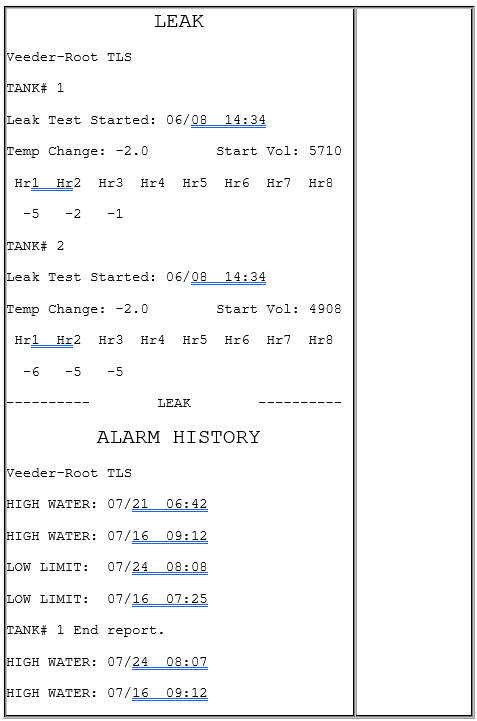
The Tank Monitor Flash report lists information gathered from a tank level sensor. This report is available only if a tank level sensor is installed in the tanks and if the site uses the optional software.
#### Report Details
**INVENTORY**
* TANK#: Tank number. Tank reports print in tank number order.
* DATE: Date and time the report runs.
* TANK NAME: Name of tank as assigned in the Tank Names function in Fuel Manager mode.
* LEVEL: Fuel level in inches.
* VOLUME: Fuel volume in gallons.
* TEMP: Temperature in degrees Fahrenheit.
* ULLAGE: Unused tank capacity in gallons.
* WATER: Water level.
**LEAK**
* TANK#: Tank number on which the test is run.
* Started: Date and time the test is run.
* Hr1 - Hr8: Number of hours of leak data.
* “Leak Test is OFF/No leak data to report.”: This phrase appears instead of the data if the leak test is not running.
* “Leak Test is ON/No leak data to report.”: This phrase appears instead of the data if the leak test has not been running for the minimum time set for collecting data.
**ALARM HISTORY**
Prints in tank number order.
* HIGH WATER: Date and time of the last three high water alarms.
* LOW LIMIT: Date and time of the last three low limit alarms.
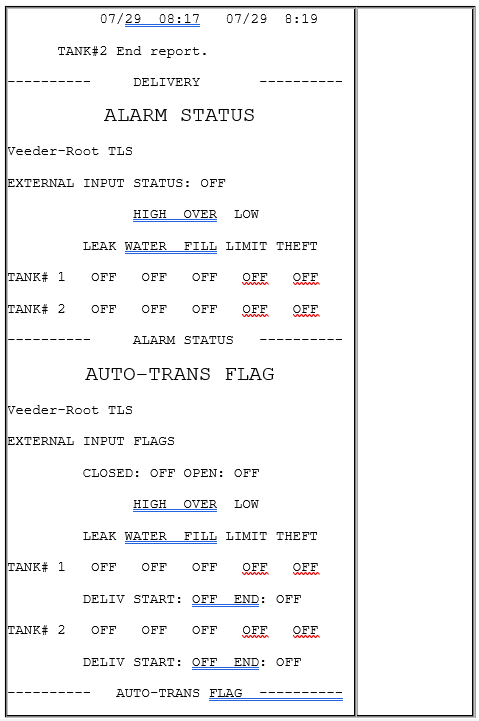
**DELIVERY**
* Tank: Prints in tank number order.
* Del: Delivery report number. The report can contain 0 - 10 deliveries.
* Begin: Volume in gallons and temperature in degrees Fahrenheit at the beginning of delivery.
* End: Volume in gallons and temperature in degrees Fahrenheit at the end of delivery.
**ALARM STATUS**
* TANK#: Printed in tank number order.
* Alarm Status: The status (“OFF” or “ON”) of the following alarms:
* Leak
* High Water
* Overfill
* Low Limit
* Theft
**AUTO-TRANS FLAG**
* TANK#: Printed in tank number order.
* Auto-transmit Flag Status: The status (“OFF’ or “ON”) of the following flags:
* Leak Alarm
* High Water Alarm
* Overfill Alarm
* Low Limit Alarm
* Theft Alarm
* Delivery Start
* Delivery End
### Tank Level Sensor (TLS): Tank Reconciliation Report
The Tank Reconciliation Report displays the inventory in gallons of fuel in each tank and compares the beginning inventory to the ending inventory. Reconcile the inventory at the end of each day to aid in tracking starting inventory from the previous day, deliveries, and dispensed fuel.
#### Report Details
* Tank: All tanks list in tank number order.
* Date: Date the inventory is taken, beginning and ending.
* Time: Time the inventory is taken, beginning and ending.
* Volume: Volume of fuel:
* Measured in each tank when the inventory is taken.
* Delivered to each tank.
* Dispensed from each tank.
**Total:**
* Starting Inventory: The total amount of fuel contained in the tanks when the beginning inventory is taken.
* Deliveries: The total amount of fuel delivered and placed in the tanks is added to the inventory.
* Fuel Dispensed: The total amount of dispensed fuel is subtracted from the inventory.
* Fuel Due: The total amount of fuel dispensed without payment.
* Ending Inventory: The total amount of fuel contained in the tanks when the ending inventory is taken.
* Discrepancy: The amount of fuel unaccounted for by the inventory. (Discrepancy = Starting Inventory + Deliveries - Dispensed - Ending Inventory)
## Tank Module
The Tank Model specifies add-on modules such as EDIM which are used for Business Inventory Reconciliation.
## Electronic Price Sign
Electronic Price Sign interface is used for communicating with electronic price sign devices used at the site to display the fuel prices for each grade.
## Carwash
Carwash interface is used for communicating with carwash controllers which generate codes for redeeming carwash purchases.
{% hint style="info" %}
*Refer to the Car topic in the document for more information.*
{% endhint %}
## Carwash Paypoint
The carwash paypoint accepts payment for carwash purchases. This interface handles forwarding of the credit card information to the payment network.
{% hint style="info" %}
*Refer to the Car Wash Pay Point feature reference documentation for information on this feature.*
{% endhint %}
## Money Order
Money Order interface is used to communicate with money order devices.
{% hint style="info" %}
*Refer to the Money Order Feature Reference for more information on this feature.*
{% endhint %}
## Digital Video Recorder (DVR)
This interface is used to communicate transaction information with Digital Video Recorder systems so that video can be matched with transaction data.
## Proprietary Card
Proprietary Card interface is used to communicate with proprietary card hosts.
## EPS Loyalty
EPS loyalty sales allow the processing and redemption of loyalty transactions, both inside at the POS and outside at the dispenser card readers (DCR). These loyalty transactions are processed through the electronic payment system (EPS).
## Scanner
There are two types of scanners supported: Ruby Ready Scanner (1D barcodes) and 2D Scanner (2D barcodes).
Refer to Scanners section in this document for more information on configuring scanners to Verifone POS.
{% hint style="info" %}
*Distributors need to preconfigure the scanner device to work with Verifone POS systems.*
{% endhint %}
### Random Weight barcode support
Random weight products are typically perishable items (e.g., meat, bakery, cheese, fish and poultry) that are sold on a price per pound basis. Most random weight products are packaged and price-marked in the store. However, some may be packaged, and price marked by a manufacturer before they are delivered to the store.
Items are weighed, and the scale produces the barcode. Scale is configured with PLUs, item names and prices for 1 unit (pound) of the product. The scale weighs the items, calculates the price and creates the barcode.
Configure the POS with the same PLUs, same descriptions and prices. The parameter Fractional Quantity should be selected in the PLU form to sell the PLUs in fractional quantities.
The barcode is scanned, POS calculates quantity based on price (in barcode) and price (in PLU file) to collect money from customer. The quantity gets printed on receipt and in reports.
### Using Scanners
Scanners can be used at any point during the transaction to scan items prior to tendering the sale. Coupons can also be scanned with scanners during the transaction. Scanners can also be used for entering drivers licenses with 2D barcodes.
{% hint style="info" %}
*See the Easy ID Feature Reference document for further information on scanning driver license barcodes and the Coupon Scanning Feature Reference document for further information on scanning coupons.*
{% endhint %}