Tools
Contains the forms in the Tools tab of the Commander Configuration Client.
Rule Manager
Use to configure rules that automatically comply with corporate policies, laws, and regulations, to limit the number of and amount of certain products that can be sold over a period to a customer.
To open Rule Manager, click Tools > Rule Manager.
Rule Manager allows you to:
Activate/deactivate a rule
Reorder rules (move up, move down)
Modify a rule
Create a copy of a rule, rename it, and modify it
Create a new rule
Delete a rule
Set up fast food orders on POS. See “Fast Food Orders on POS.”
Activating or Deactivating a Rule
To make a rule active or inactive
To activate a rule — Click the “Active” check box in front of the rule and click Save.
To deactivate a rule — Clear the “Active” check box in front of the rule and click Save.
Creating a Rule
In Rule Manager, click Add.
Enter a name for the rule.
Enter a description (optional).
Enter Register number.
Select the scope of the rule:
Transaction — The rule is evaluated at the time of sale.
Line Item — The rule is evaluated when the item is entered as a line item.
Select the item that triggers the rule to be evaluated. Depending on the rule you are modifying, select one of the following:
PLU
Department
Payment
Transaction Begin
Transaction End
Add conditions for the rule. Select the condition type from the drop-down list box.

Select the operator to apply to the rule.

Operator types “equal to, not equal to, and like” appear for “PLU, Department, Product Code, and MOP” Condition Types.
Operator types “equal to, not equal to, greater than, less than, greater than or equal to, and less than or equal to” appear for “Quantity and Amount” Condition Types.
Click “Edit” in Set Conditions section to select the PLUs or Departments or MOPs.

Or add the quantity or amount for Condition Types, “Quantity” and “Amount”.

Click Edit in Available Actions section to determine the actions that occur when the rule is triggered, and the condition evaluates to true.


The available actions are:
Alert Cashier: When the rule is triggered, alert the cashier.
Apply Blue Law: When the rule is triggered, apply a blue law.
Note: Blue Laws are set up in Store Operations > Restrictions > Blue Laws.
Apply ID Check: When the rule is triggered, apply an ID check.
Apply Min.Security Level Check: When the rule is triggered, check if the cashier has the minimum-security level to perform the transaction.
Journal Event: When the rule is triggered, journal the event with a message.
Veto: When the rule is triggered, prevent the transaction from taking place. For example, prevent a credit card MOP from being used when lottery is in the transaction.
Enter/Select POS Kitchen Printer: When the rule is triggered, send the transaction to the selected kitchen printer.
Send to Kitchen Display System via iOrder: When the rule is triggered, send the transaction to the Kitchen Display System (KDS).
Add Receipt Message: When the rule is triggered, add a message on the receipt.
Change Receipt Header: When the rule is triggered, change the receipt header.
Add Item: When the rule is triggered, the selected menu key is displayed.
Restricted Department: Used for LAC to restrict fuel, lubricants, and merchandise from being sold at the same time in a single transaction. This action will restrict selected departments here to be mixed with non-selected departments in a transaction.
Click Set Attributes to set actions for the selected action type.


Click Close
In Rule Manager, click Save.
Modifying a Rule
Rules can be modified to change:
whether they act on a line item or a transaction,
which event triggers the rule,
which conditions are in effect for the rule,
which actions occur when the rule is triggered.
In Rule Manager, select the rule that you want to modify and click Modify.
Copying a Rule
The copy feature can be used to create the basis for a new rule. To copy a rule and rename it:
In Rule Manager, select the rule.
Click Copy. The copy is added to the end of the rule list, with _0 appended to the end of the original name.
Deleting a Rule
To delete a rule
In Rule Manager, select the rule to be deleted.
Click Delete. The rule is deleted.
Fast Food Orders on POS
Refer to the POS to iOrder Feature Reference documentation for more information on this feature.
Refer to the Kitchen Printer Feature Reference documentation for more information on this feature.
Send PLUs from the POS to the Kitchen Printer
A kitchen printer can be installed, and the Rule Wizard can be used to create a rule that sends selected PLUs from the POS to the specific kitchen printer and prints a receipt.
Create a new rule. See “Creating a New Rule.”
Follow the procedure to create the rule. See “Creating a Rule". Set the following attributes for the rule:
Scope of the rule — Select Transaction.
Trigger for the rule — Select Transaction End.
Conditions — Enter PLUs for the rule and select “Like” as the operator to apply to the rule.
Action — Select Send to Kitchen Printer and click Add.
Further define Action — Select or enter the name of the specific kitchen printer.
Activate the rule. “See Activating or Deactivating a Rule.”
See “Store Operations > Menu Keys” to make the rule part of an Order Menu.
Entering customer name for food orders taken at POS
From Tools > Managed Modules, do the following:
Select Kitchen Printer Service as kp.svc.POS
Set System Hosting Kitchen Printer to 'sitecontroller'
Click on Advanced Settings
Select connection port and save
Check Enable Kitchen Printer Service and save
Click Tools->Refresh Configuration
In Tools > Rule manager, create new rule
Select Scope as “Transaction”
Select Trigger Type as “Transaction End”
Select Condition Type as “Department” and Operator Type as “like”
Select the food department
In Available Actions, select “Enter/Select POS Kitchen Printer”
In Set Attributes form, Select Kitchen Printer as “kp.svc.POS”
Reboot Verifone Commander
From Store Operations > Sales > Sales Configuration:
Select “Prompt Food Order Name”
Select “Prompt Food Order Phone Number”
Managed Modules
Managed Modules is an interface for assigning port numbers and configuring communication parameters for hardware modules connected to the POS or Verifone Commander. The configuration changes do not require a reboot of the Verifone
Commander or the POS. Based on the device type selected, the default communication settings are populated.
For any changes to be reflected in the system, select “Tools > Refresh Configuration” from Configuration Client and logout and login back to the POS.
Changes to Fuel Driver and DCR Driver modules need driver initialization from “Forecourt > Initialization > DCR/Fuel Driver”.
Changes to Car Wash module need a DCR initialization from “Forecourt > Initialization > DCR”.
Current Configuration
The current configuration tab is used for viewing, adding, or editing the port and communication parameters of each hardware module.
Host Name
Select the host to which the hardware module is connected. The host can be the Verifone Commander, or each POS controlled by the Verifone Commander.
POS
Use to add the port and enable the hardware module connected to each POS. Select the POS from the Host Name drop-down list. To switch ports, disable the device you want to move, as well as the device you want to move it to. Otherwise, the Port Name drop-down only shows the port the device is already assigned to.
Most of these modules have feature references. Refer to the feature reference documentation for information on these modules.
Select Module
Check Scanner
Use to add the port and enable check scanner.
Coin Dispenser
Use to add the port and enable coin dispenser.
DVR Logging Types
The Digital Video Recorder (DVR) feature provides a DVR interface to the Point of Sales (POS) System to detect and deter attendant fraud. The DVR broadcasts certain transactions performed on the POS terminal and displays these events with video images recorded at the time the events occurred. This provides video images of attendant actions coupled with a journal of events as recorded by the POS terminal.
Refer to the Digital Video Recorder Implementation Guide for information on this feature.
The “DVR Logging Type” configuration allows selecting types or classes of DVR events to be recorded.
DVR Journal
Use this form to add the port and enable DVR device.
PIN Entry Device
Use to add the port and enable PIN Entry Device.
Customer Display
Use to add the port and enable Customer Display of C18 POS.
On the back of the main C18 display are two USB ports located just below where the main display is mounted to the "handle bar". Connect the C18 Customer Display cable to one of the USB ports.
Refer to the C18 Customer Display Installation guide for more information.
Reboot the C18 system and wait for the main display to show "C18 Press Enter or Touch Screen to log in".
De-select Enable Device
For "Port Name", select USB Display.
If "USB Display" is not shown in the list, make sure to connect the C18 Customer Display and reboot the POS.
Click ‘Save'.
Select the "Enable Device" checkbox and Click "Save" again.
Restart POS.
When the application starts, Register Closedis displayed on the Customer Display.
After logging in to 'Sales', the phrase "Thank You" should be scrolling across the Customer Display.
Scanner
Any USB port on the POS can be used to connect a USB Scanner device. After connecting a new scanner to the POS, restart the POS before configuring the scanner.
Recommendation is to have the scanner connected to the POS either during reboot or during an Auto-Upgrade process.
If an existing scanner is being replaced or reconnected to the POS, the POS must be restarted.
If a reconnected device was configured before, then no configuration steps described here are necessary. However, the system must be restarted.
Any combination of serial or USB scanner can be connected for primary and secondary scanner.
Scanner configuration and changes can only made through Configuration Client > Tools > Managed Modules.
Refer to Zebra Scanners Installation guide for more information on this feature.
Controller
Use to add or edit the port and communication parameters of each hardware module connected to the Verifone Commander. Select the Verifone Commander from the Host Name drop-down list.
Most of these modules have feature references. Refer to the feature reference documentation for information on these modules.
Select Module
Auxiliary Forecourt
Refer to the Auxilliary Forecourt Feature Reference documentation for information on this feature.
Use to configure Auxilliary Forecourt devices like Aux Pos, Petro Vend and Wetstock Management Devices.
Click Advanced Settings next to Auxiliary Forecourt Channel 1

Select Enableto enable Channel 1
Select the Device Type: Aux Pos, Petro Vend or Wetstock Management
Assigns the Verifone Commander serial port to be used for the Channel
Click Advanced Settingsof Fueling Positionsif the Device Type is **Petro Vend.**A Petro Vend device on a channel can control 16 fueling positions.

Click Saveon the Channel 1 Fueling Positions to go back to the Auxiliary Forecourt Channel 1 Configuration form.
Click Advanced Settingsof Emulated PCTs if the Device Type is Petro Vend.

Select PCT 1 for Channel 1 Petro Vend Configuration.
Car Wash
Refer to the Car Wash topic in this document for information on this feature.
From the Select Module list, select Car Wash
Select Device Type
Click Advanced Settings

Select the Serial Port
DCR Driver
Refer to the Dispenser Car Reader topic in this document for information on this feature.
From the Select Module list, select DCR Driver
Select to enable DCR Control
Click Advanced Settings next to DCR Channel 01

Click Enable Channel.
Select IP Enabled for outside EMV DCRs
Select Port name for serial port DCRs. **Following the upgrade to Verifone Release 56.00, the serial port DCRs are no longer supported. It is important to delete any existing Serial DCR configurations. Failure to remove these settings will result in the Serial DCR not activating and a persistent alarm on the Point of Sale (POS) system until the configuration is cleared. If you are unsure if your site is using serial DCRs, contact the Verifone Helpdesk or a Verifone Authorized Service Contractor prior to applying the upgrade.

Select DCR Family type: Bennett, Gilbarco, Invenco, Tokheim, VFI SPP, Wayne
If debit encryption is to be used, click Advanced Settings
Select Debit Encrypt Type
DSM: Select if using a Dresser/Wayne DUKPT Security Module (DSM).
DUKPT: Select for all US sites not using a GSM or DSM.
GSM: Select if using a Gilbarco Security Module (GSM).
MS: Select only for non-US sites using Master Session encryption.
NONE: Select if not configuring for Debit (no encryption). There were complaints that on some Wayne devices, particularly 5-inch and 7-inch models, that the font size was sometimes too small.
To fix this issue the new option called "Graphic Enhancer" is included in this form only for Wayne. The parameter contains three levels: LOW, MEDIUM and HIGH. The "LOW" option is the default. "MEDIUM" and "HIGH" is used to increase the font size.

Using "MEDIUM" and "HIGH" run the risk of the font being too big such that it ends up clipping, especially, if there is another softkey opposite.
For example:

These clippings can be prevented by switching around some of the softkeys.
At present, "MEDIUM" and "HIGH" font size changes are only supported on 5-inch and 7-inch Wayne devices.
Click Save
Click Save on DCR Channel 01 window
In feature Set 19 or higher for Wayne, there is an option to enable Enhanced CAT used for Secure CAT DCRs. This setting would only be used at Exxon Mobil sites that have Secure CAT DCRs (legacy or Dual CATs with injected secure messages). For both Wayne and SPP, if debit is used at the DCRs for the site a Debit Encrypt Type other than NONE must be selected (failure to do so will result in the keypad not functioning properly).
Click Save on DCR Channel 01 window
Set up additional DCR channels as required using previous steps.
Click Advanced Settingsat DCR Positions to configure the appropriate channel for each DCR.

For each DCR, specify the channel to which it is assigned.
DVR Configuration
The Digital Video Recorder (DVR) feature provides a DVR interface to the Point of Sales (POS) System to detect and deter attendant fraud. The DVR broadcasts certain transactions performed on the POS terminal and displays these events with video images recorded at the time the events occurred. This provides video images of attendant actions coupled with a journal of events as recorded by the POS terminal.
Refer to the Digital Video Recorder Implementation Guide for information on this feature.
Select the DVR mode: mode of communication for the DVR interface. The values are:
Multicast: multicast communication is enabled. This is the default value.
Serial: serial communication is enabled
Both: serial and multi cast communications are enabled
Disabled: configures the system to not generate DVR events
Multicast IP Address: The default Multicast IP Address is populated
Multicast Port Number: The default Multicast Port Number is populated
Local UDP port connations are to use: the fully qualified IP address and the multicast address. For example, 230.0.0.1:14001
Number of upstream hops allowed for multicast packet: The DVR “Multicast” uses the “Multicast UDP Datagram” broadcasting mechanism to send DVR event info. According to the IETF standard regarding “Multicast UDP Datagram”, the default ‘hop’ (or Time-To-Live - TTL) is ‘1’. The TTL value is used by routers that when they receive a datagram, they decrement the TTL value. If the TTL is still is greater than ‘0’, the datagram is forwarded to the router’s upstream LAN port (WAN). The IETF cautions about using a TTL value grater than 1 for multicast UDP datagram in that they do not want the Internet flooded with these multicast datagrams and only allows use of the TTL value greater than 1 if the routers are kept within an internal network.
We supply the ability to specify a value greater than 1 for those customers who have DVR monitoring equipment not in the “VFI Zone” and need to UDP datagram to forward ‘upstream’.
Click Advanced Settings to select port

Select port
Select baud rate
“Use Extended Protocol Mode” selects whether the DVR events send prepended byte codes normally used by journal printers. Unselecting this entity does not send the byte codes. Enable this value for backwards compatibility of legacy DVR equipment.
For any changes to be reflected in the system, select “Tools -> Refresh Configuration” from Configuration Client.
DVR Logging Types
The “DVR Logging Type” configuration allows selecting types or classes of DVR events to be recorded.
For any changes to be reflected in the system, select “Tools -> Refresh Configuration” from Configuration Client.
Fuel Driver
Refer to the Fuel Manager and Fuel Sales topics in this document for information on this feature.
Enable SPI when running Smart Pump Interface (SPI) at the site.
Click Advanced Settings to configure Fuel Channel 01

Click to Enable Channel.
Assigns the Verifone Commander serial port to be used for the Channel.
Select Dispenser Type.
Click Advance Settings in Dispenser Type to configure Dispenser Type advanced settings.

Click Save/Cancel to go back to Fuel Channel form.
Specify Total fueling positions on this channel.
Enter the maximum and minimum delay for communication.
Maximum and Minimum Delay are used with Non-Modular Highline pumps only.
Configuring Hydrogen Fuel
Hydrogen Fuel can be configured in in Bennet Dispenser Type.
Select Bennet as Dispenser Type.

Click Advanced Settings.
Select Direct/RS485 as the Protocol.

Select 8 as Data bits

Bennett Direct/RS485 Dispenser Protocol can also support traditional fuel.
Go to “Forecourt > Fuel > Fuel Config – Pending > Fuel Products” from Configuration Client to configure Hydrogen fuel.

Product codes 0331 (HYDROGEN H35) and 0332 (HYDROGEN H70) are the Hydrogen Fuel product codes.

Assign Hydrogen Fuel to Hose from Configuration Client > Forecourt > Fuel Config > Fueling Positions. Assigning Fueling Position is same as for the existing fuel products.
Fuel Price Display
Refer to the Fuel Price Sign Communication document for information on this feature.
Click Advanced Settings to select port.
Fuel RFID Configuration
Refer to the ORPAK AVI/RFID Fueling System feature reference documentation for information on this feature.
Enter the RFID configuration details.
GSM
Click Advanced Settings for each GSM (Gilbarco Security Module) port to assign the port.
Kitchen Printer Service
Refer to the Kitchen Printer feature reference documentation for information on this feature.
Click to Enable Kitchen Printer Service
Select the port for connection
MNSP VPN Management Service
Verifone POS systems establishes or enables on-demand secure connections through the Managed Network Service Provider (MNSP) router. This enables the Verifone support personnel to interact with the POS systems through a VPN connection. New PCI requirements do not allow continuous, persistent connections outside of the VFI Zone and that if connections are to be made, they must be initiated by the customer using Maintenance > Help Desk Diagnosticsfrom the POS.
Use this form to configure the MNSP VPN configuration.
Money Order Feature
Refer to the Money Order Feature Reference for more information on this feature.
Select to enable money order feature
Reset Totals on Period Close is enabled by default and resets totals on the money order device when a period is closed by the cashier.
Select Device Terminal Type: MoneyGram Delta Network, Western Union ICE, or Western Union T7E.
Click Advanced Settings to enter the communication parameters.
MoneyGram Delta Network
Select the Port
Enter Terminal Id
Western Union ICE6000
Enter the money order terminal’s IP address
Enter the Terminal Id of the money order device
Enter the forwarding IP address for the money order terminal. Typically the WAN side IP address of the Verifone zone router at the site should be entered.
The WAN side IP address of the Verifone zone router is the forwarding IP address that should be used for the standard money order device configuration where the device resides on the store LAN.
Western Union T7E
Select the Port
Speedpass
Speedpass Wayne Device 1
Click Advance Settings of Wayne Device 1

Click to Enable
Trac Controller Address for device1 is HEX 95
Select Port
Begin DCR #: 1
End DCR #: 1- 32
Speedpass Wayne Device 2
Click Advance Settings of Wayne Device 2
Click to Enable
Trac Controller Address for device2 is HEX 96
Select Port
Begin DCR #: 33
End DCR #: 33 - 64
Speedpass Gilbarco Device
Click Advance Settings of Gilbarco Device 1

Click to enable DCR Positions.
Tank
BIR (Business Inventory Reconciliation) E-DIM is an expansion card in the TLS box that receives transaction data from Verifone Commander fuel sales for reconciliation.
Select Tank Model as EDIM
Click Advance Settings

Change Serial Port name to Port to be used, all other settings should be left default.
Tank Level Sensor
The Tank Level Sensor (TLS) is used for communicating with devices used to monitor the level of fuel in the tank. The sensor also sends alarms that are displayed on the POS.
Select Device Type Veeder Root TLS 450 is the more advanced version of Veeder Root TLS, which can support 16 tanks and has more alerts incorporated.

Click Advanced Settings to select port.
Receipt Printer
Use to add the port and enable Receipt Printer.
Order Confirmation System
Refer to the Outside Confirmation Board feature reference documentation for information on this feature.
Use to configure the order confirmation system.

If the "Enable OCS" is selected, de-select and press [Save].
For "OCS Type", select Delphi Systems OCS Ethernet
Select [Advanced Settings].
For "Device Network Address”, enter IP for the device.
For "Device Network Port”, enter listening port for the device.
Press [Save].
Select the Enable OCS and press [Save].
Pending Configuration
Feature not available.
System Resources
System Resources tab shows a list of the module names and the ports to which the modules and Channels are assigned.
Refresh Configuration
After any changes are made to Car Wash, POP, or Network parameters including Loyalty, the command “Tools > Refresh Configuration” needs to be executed for the new settings to be applied to fuel and DCRs.
After changes are made to DCR parameters, the command “Tools > Refresh Configuration” is executed for the new settings to be applied to DCRs.
Changes to the Receipt Header/Trailer parameters also require a DCR download. All the DCR position attributes except Pay At Pump, Push To Start Button, Grade
Select Button, and Lever On Pumprequire a Initialize DCR Driverin addition to “Tools > Refresh Configuration”.
Ping Utility
Use to ping the devices in the LAN to check the communication status. Enter the IP address of the device and click Ping
Image Upload
Users can import their own images and logos from Tools > Image Upload.
Refer to the Self Checkout User Reference documentation for information on this feature.
Event Manager
Enhanced System Monitoring feature provides a mechanism for retailers to remotely monitor certain events that occur at the site. Data required to monitor the site remotely is collected from all the registers at the site and sent to a configured remote server.
This document does not cover information on how to configure the server to receive events and view events. This section only covers the configuration done through the Configuration Client.
Events that can be monitored are of two types:
Real Time Events: A Real Time Event triggers notification to the remote server only when there is an occurrence of a specific activity at the site.
Scheduled Events: Unlike Real Time Events, Scheduled Events trigger notification to the remote server periodically. We can configure the desired frequency rate at which the remote server should receive notifications.
Event Configuration
Name
An alias to the server. This should be unique.
URL
The URL to reach the remote server.
Enable Event
Check “Enable Event” to register for the event. A target server can be registered for multiple events.
Event Type
The following are the event types:
APP_START: Select to get notification when applications are started on each register including Verifone Commander.
SALES_MONITOR: All Sales transactions are sent to the server at certain frequency of time.
MWS_MGRACCEPTED: Get notification when the totals are accepted by manager on the Manager Workstation.
FUNDS_AUDIT: Get notification when funds are audited.
PERIOD_CLOSE: An event is triggered on period close.
FUEL_INIT: An event is triggered when fuel gets initialized.
PERIPHERAL_STATUS: Get notification on the status of peripherals like scanner, PIN pad etc on each register.
OTP_GENERATED– When OTP Generated is enabled, Verifone Commander transmits the one-time password (OTP) that is requested within Configuration Client for specific secure actions, especially EPS Global Configuration, to the specified server URL. Enabling this function allows the OTP to be retrieved from the server rather than requiring the site to provide the OTP.
Note: Verifone does not dictate how communication for the listening server is configured or set up. The server must be listening for the event to be collected at the time the Verifone Commander creates the event. The Verifone Commander does not retry or verify if the listening server received the message. It only functions to broadcast the one-time password.
Note: This event can be used in conjunction with Verifone’s TSA Program. Contact your Sales Account Manager for more information on TSA.

Certain events provide flexibility to receive a mapped user’s secure token (Cookie) as part of event notification.
This secure token can be used by the remote machine to fetch the data further from the site by executing CGI commands.
Notification Frequency
This is applicable only for Scheduled event (Sales monitor). User can select the desired frequency rate listed.
Test Event Registration
The Test button is used to resend the last occurred event data (real time event) and snapshot of current system data (scheduled event).
Reboot Commander
This option reboots Verifone Commander.
After the user selects “Yes”, an OTP is required to complete the process.
Lab Settings
This feature should only be enabled for the customer lab Verifone Commanders.
Till Base 55.02, the customer lab Verifone Commanders onboarded to C-site management CST environment, would revert to production after every Auto Upgrade (AU) or full install, as the AU or full install removes the CST files. The ESG had to help the lab Verifone commanders to point back to the C-site management CST environment.
After updating the site to Base Release 55.02, the pointing back to C-site management CST environment can be done from the configuration client without taking the help of ESG.
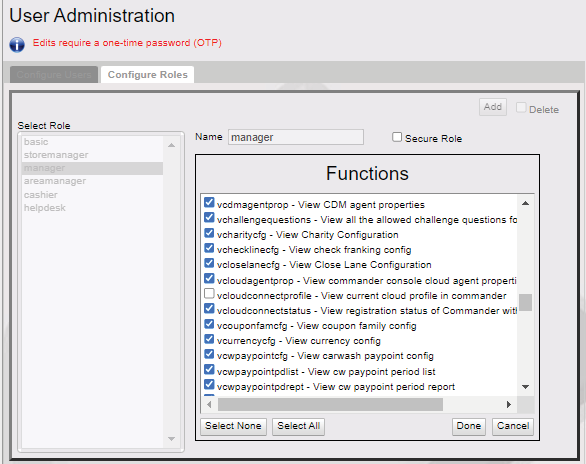
To enable Lab Settings, go to Configuration Client > Security > Manage User > Configure Role.

Select the role and then select Edit.

Enable vcloudconnectprofileand ucloudconnectprofile.


Click Save.
Reboot Verifone Commander from Tools > Reboot Commander

Go to Tools > Lab Settings.

Select Enable for Lab Environment.

The following guidelines appear. Select Yes.

Select Customer Lab.

Select Okat the reboot message.

Without rebooting the Commander previous profile shows

Go to Tools > Reboot Commander. After the user selects “Yes”, an OTP is required to complete the process.
Helpdesk Diagnostics
This menu is accessible from Configuration Client and POS.
This menu provides diagnostic information. The diagnostics information can be used by both the Helpdesk as well as site users.
The screens provide overall Online/Offline/Mixed status for configured devices in each section.
Online= Device(s) is/are connected and functioning.
Offline– Device(s) is/are not connected or functioning.
Mixed– One or more devices is not connected or functioning.
There is a visual indicator (e.g. green/orange/red) along with the textual status.
General Status
The General Status screen reports the general status of the system. General Status reports overall Online/Offline/Mixed status of:
Controller (Verifone Commander)
Zone Router
Secure Services
Electronic Check, if configured
Electronic Safe, if configured
Food Services, if configured
Configured Registers
Configured Register Printers
Configured Register Scanners
Configured Pinpads
Forecourt Status
This screen reports the last Online/Offline status and Offline time of all configured:
Pumps
DCRs
Car Wash
Car Wash Paypoint
Tanks connected to a Tank Level Sensor
Fuel Price Display
Vending Machine
Cash Acceptor
POS Status
The POS status screen reports the following:
The Online/Offline status and time of all configured registers along with their ID.
The register as the device name (e.g. Topaz, Ruby2).
The detailed status and time of all configured printers.
Primary Scanners that are connected to a configured register and if they are enabled or disabled.
The detailed status and Offline time of all configured Electronic Check services.
The detailed status and Offline time of all configured Electronic Safes.
The overall status and Offline time of Verifone Commander Core Services.
The overall status and Offline time of EZR (connectivity from Verifone Commander devices to EZR).
The MAC address of EZR.
The overall status and Offline time of Secure Services (connectivity from Verifone Commander to online support).
The status and Offline time of connectivity to Cybera Support
The status and Offline time of connectivity to VRSD
Payment Status
Reports Online/Offline status and time of all configured Feps, listed by Fep name. These include all configured Payment, Lottery, and Loyalty Feps, as well as Mobile.
Reports the following information (if supported) for the Feps:
Last Batch Closed
Current Batch Number
Current Batch Count
IP Address
Last Transaction Date
Current Net Amount
Current Terminal Batch
Store and Forward count
MNSP Status
Shows the MNSP Status.

Last updated