> For the complete documentation index, see [llms.txt](https://commanderhelp.verifone.com/llms.txt). Markdown versions of documentation pages are available by appending `.md` to page URLs; this page is available as [Markdown](https://commanderhelp.verifone.com/feature-references/features-and-products-references/auto-upgrade/using-auto-upgrade/auto-applied-upgrade.md).
# Auto Applied Upgrade
Once the software upgrade download is completed, a message is shown on the POS terminals that an update is available to be applied. The upgrade may be initiated manually, or the system may be configured to automatically initiate the upgrade if it is not manually run within a set number of days. Systems configured to auto apply upgrades have reduced problems associated with the timely update of new software, or with updates not being applied at all.
For systems configured for auto applied upgrade:
* Upgrades will be applied after a set number of days from the date the upgrade package is received locally by the Commander System Auto Upgrade engine. Days remaining for the upgrade will be counted based on a change in calendar date.
* A daily notification reminds the site about the pending upgrade. This action is only implemented on Verifone POS terminals, and at this time does not support third party POS terminals.
* A daily notification reminds the site to print upgrade instructions. The final notification on execution date will provide basic prerequisite upgrade instructions.
* Before the automatic upgrade is triggered, the latest day close report will be printed.
* Once triggered, messages displayed on the POS registers and a Fuel Site Pause will prevent further activity or sale(s) before applying the upgrade automatically.
* The system will apply upgrades automatically only when the period close is complete on all registers. The Auto Upgrade framework checks the readiness of all client POS terminals prior to initiating the software upgrade.
* The upgrade process will not begin if any unsettled post pay fuel transactions exist in the system. The upgrade process will be on hold until such transactions are cleared, and an the alarm ‘Upgrade Cannot Proceed’ will display on the POS terminals while printing the daily report prior to the scheduled upgrade
{% hint style="info" %}
*Upgrades will **not** be automatically applied if there are pending* *transactions or unsettled post pay fuel transactions open in the* *system.*
{% endhint %}
## Requirements
* Sites must already be on Commander Release 44 or higher for this functionality.
* System properties must be set to enable the Auto-Applied Upgrade. Software upgrades would then be auto-applied on the next downloaded base-level upgrade.
## Enabling Auto Applied Upgrade
To enable the feature, the logged in use must have permissions to edit System Permissions.
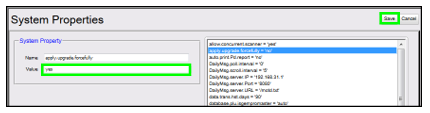
1. Navigate to Initial Setup>System Properties.
*The system parameter apply.upgrade.forcefully is the controlling variable. By default* the parameter value is set to ‘no’.
2. *Locate and select the apply.upgrade.forcefully parameter.*
3. Edit the parameter value and set the value to ‘yes’.
4. Click **\[Save].**
## Ready Enabled Auto-Applied Upgrade
Some major oil brands have chosen for their corporate and affiliate sites to have this feature enabled in their software download packages. In these instances, the *apply.upgrade.forcefully value is already set within the application to ‘yes’, and* *cannot be edited or changed. In those software packages, the apply.upgrade.forcefully* System Property is hidden and not accessible when viewing the systems Properties list.

## Auto Applied Upgrade Process
*The System Property apply.upgrade.forcefully is set to ‘yes’. This is either included in* the current software package, or can be enabled manually.
During daily operations, once the software upgrade has been received by the POS *system, cashiers are notified there is an Upgrade Pending.*
On the day of the software download, an alert message states the software upgrade will be automatically applied when the daily counter has reached the execution date. The site may manually initiate the software upgrade at the end of the day close at any time prior to the counter expiration.
On the day the software upgrade is received by the POS system, when the user initiates the period close by accessing the POS Reporting Functions Menu >Close Day/Month/Year Report, an Auto Upgrade message is displayed. The notification states that the software upgrade will be automatically applied when the daily countdown has reached the execution date, although the upgrade may be applied manually if the site chooses to do so.
If the software upgrade is not applied manually, the system is then set to automatically apply the upgrade at the end of the business day when the daily counter reaches the execution date. An alert message states the software upgrade will be automatically applied at the end of that day close.
When the daily counter has expired and reached the execution date, and the user initiates the period close by accessing the POS Reporting Functions Menu >Close Day/ Month/Year Report, an Auto Upgrade message is displayed. The notification states that the software upgrade will be automatically applied as part of the period close.
---
# Agent Instructions
This documentation is published with GitBook. GitBook is the documentation platform designed so that both humans and AI agents can read, navigate, and reason over technical content effectively. Learn more at gitbook.com.
## Querying This Documentation
If you need additional information that is not directly available in this page, you can query the documentation by asking a question.
Perform an HTTP GET request on the following URL with the `ask` and `goal` query parameters:
```
GET https://commanderhelp.verifone.com/feature-references/features-and-products-references/auto-upgrade/using-auto-upgrade/auto-applied-upgrade.md?ask=&goal=
```
`ask` is the immediate question: it should be specific, self-contained, and written in natural language.
`goal` is what the user is ultimately trying to achieve, the reason they need the answer. Sharing it helps GitBook give you a better, more relevant answer. A goal is most helpful when it describes the outcome the user wants rather than restating the question. For example, with `ask=how do I create an API token`, a goal like `automate deployments from our CI pipeline` lets GitBook tailor the answer to that use case.
The response will contain a direct answer to the question and relevant excerpts and sources from the documentation.
Use this mechanism when the answer is not explicitly present in the current page, you need clarification or additional context, or you want to retrieve related documentation sections.