> For the complete documentation index, see [llms.txt](https://commanderhelp.verifone.com/llms.txt). Markdown versions of documentation pages are available by appending `.md` to page URLs; this page is available as [Markdown](https://commanderhelp.verifone.com/feature-references/features-and-products-references/electronic-safe/reporting-electronic-safe/pos-flash-reports/e-safe-end-of-day-report.md).
# E-Safe End of Day Report
The End of Day Report logs all E-Safe and POS Drop and Loan amounts for the reporting period. When a day close is initiated by the POS System, it communicates with E-Safe to retrieve E-Safe transaction details. The POS System reconciles E-Safe's financial data with the POS System's financial data and records any discrepancies.
The E-Safe Day Report can be generated at the POS terminal by running the Flash Report.
{% stepper %}
{% step %}
## Select the Reporting Menu
Select the \[Reporting Menu].

{% endstep %}
{% step %}
## Select Flash Report
Select \[Flash Report].

{% endstep %}
{% step %}
## Run the E-Safe End of Day Report
From the Flash Reports Menu, press the \[E-Safe End of Day Report].

{% endstep %}
{% endstepper %}
The E-Safe End of Day Report prints.
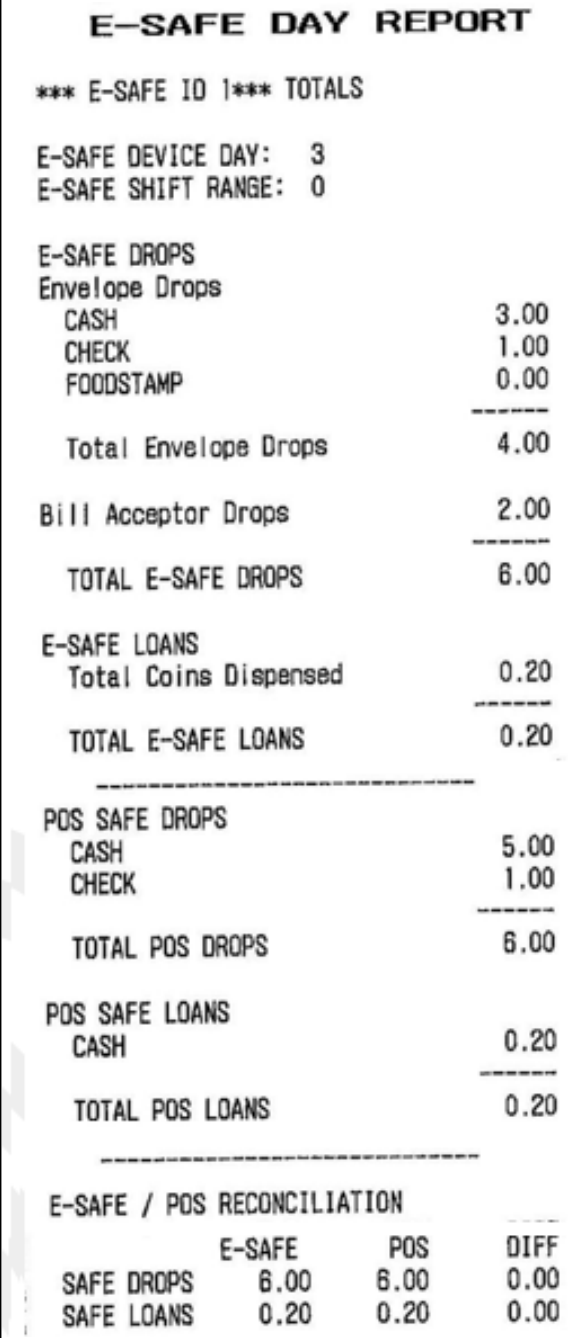 **Report Details**
* TITLE: E-SAFE DAY REPORT
* E-SAFE ID \[#] TOTALS: Breakdown of the identified E-Safe's transaction details.
* E-SAFE DEVICE DAY: E-Safe Manufacturers defined business day.
* E-SAFE SHIFT RANGE: E-Safe Manufacturers defined shift range.
* E-SAFE DROPS: Electronic transfer of money from the cash drawer to E-Safe.
* Envelope Drops: Deposits made to E-Safe from envelope drops.
* CASH: Note type (bills/currency).
* CHECK: Note type that is drawn against deposited funds.
* FOODSTAMP: Paper coupons.
* Total Envelope Drops: Sum total of all note types in the envelope drop.
* Bill Acceptor Drops: Medium used to deposit bills (cash) into E-Safe.
* TOTAL E-SAFE DROPS: Sum total of the envelope and Bill Acceptor drops.
* E-SAFE LOANS: Electronic transfer of money from E-Safe to the cash drawer.
* Total Coins Dispensed: Total coin amount dispensed from E-Safe to the drawer.
* Total Cash Dispensed: Total bill amount dispensed from E-Safe to the drawer.
* TOTAL E-SAFE LOANS: Sum total of funds dispensed from E-Safe to the cash drawer.
* POS SAFE DROPS: Electronic transfer of money from the cash drawer to E-Safe.
* CASH: Type of note (currency).
* CHECK: Type of note drawn against deposited funds.
* TOTAL POS DROPS: Sum total of all cash drawer funds deposited to E-Safe.
* POS SAFE LOANS: Recorded transfer of money from E-Safe to the cash drawer.
* CASH: Types of notes (currency) retrieved from E-Safe.
* TOTAL POS LOANS: Sum total of funds transferred from E-Safe to the cash drawer.
* E-SAFE / POS RECONCILIATION: The POS System reconciles the E-Safe financial data with the POS Systems financial data documenting the discrepancies.
* E-SAFE: Total amount of E-Safe Drops reported.
* POS: Total amount POS Safe Drops reported.
* DIFF: The E-Safe and POS drop amount discordancies.
* E-SAFE: Total amount of E-Safe Loans reported.
* POS: Total amount POS Safe Loans reported.
* DIFF: The E-Safe and POS loan amount discordancies.
---
# Agent Instructions
This documentation is published with GitBook. GitBook is the documentation platform designed so that both humans and AI agents can read, navigate, and reason over technical content effectively. Learn more at gitbook.com.
## Querying This Documentation
If you need additional information that is not directly available in this page, you can query the documentation by asking a question.
Perform an HTTP GET request on the following URL with the `ask` and `goal` query parameters:
```
GET https://commanderhelp.verifone.com/feature-references/features-and-products-references/electronic-safe/reporting-electronic-safe/pos-flash-reports/e-safe-end-of-day-report.md?ask=&goal=
```
`ask` is the immediate question: it should be specific, self-contained, and written in natural language.
`goal` is what the user is ultimately trying to achieve, the reason they need the answer. Sharing it helps GitBook give you a better, more relevant answer. A goal is most helpful when it describes the outcome the user wants rather than restating the question. For example, with `ask=how do I create an API token`, a goal like `automate deployments from our CI pipeline` lets GitBook tailor the answer to that use case.
The response will contain a direct answer to the question and relevant excerpts and sources from the documentation.
Use this mechanism when the answer is not explicitly present in the current page, you need clarification or additional context, or you want to retrieve related documentation sections.