> For the complete documentation index, see [llms.txt](https://commanderhelp.verifone.com/llms.txt). Markdown versions of documentation pages are available by appending `.md` to page URLs; this page is available as [Markdown](https://commanderhelp.verifone.com/feature-references/features-and-products-references/full-service-attendant/configuring-full-service-attendant/fuel-configuration.md).

# Fuel Configuration

The Fuel Configuration form allows users to configure the appropriate fuel pumps for Full Service Level.

{% stepper %}
{% step %}
Navigate to Config Client > Forecourt > Fuel > Fuel Config - Pending.

<figure><img src="https://1800087076-files.gitbook.io/~/files/v0/b/gitbook-x-prod.appspot.com/o/spaces%2F5nJgnNKJ9ZrZeEdr7pqh%2Fuploads%2FeLQ4kLOgC40Cf4dAXoM2%2Fimage.png?alt=media&amp;token=bd9c07cd-701e-4de8-8428-f1bbcb1728ae" alt="" width="563"><figcaption></figcaption></figure>

The Fuel Configuration - Pending window displays.
{% endstep %}

{% step %}
Select the \[Fueling Positions] tab.

<figure><img src="https://1800087076-files.gitbook.io/~/files/v0/b/gitbook-x-prod.appspot.com/o/spaces%2F5nJgnNKJ9ZrZeEdr7pqh%2Fuploads%2FPkxTGB0cV8P7YMYEDYED%2Fimage.png?alt=media&amp;token=6e2fbccf-77e3-4af2-8c1f-c8b1e0aa7333" alt="" width="563"><figcaption></figcaption></figure>
{% endstep %}

{% step %}
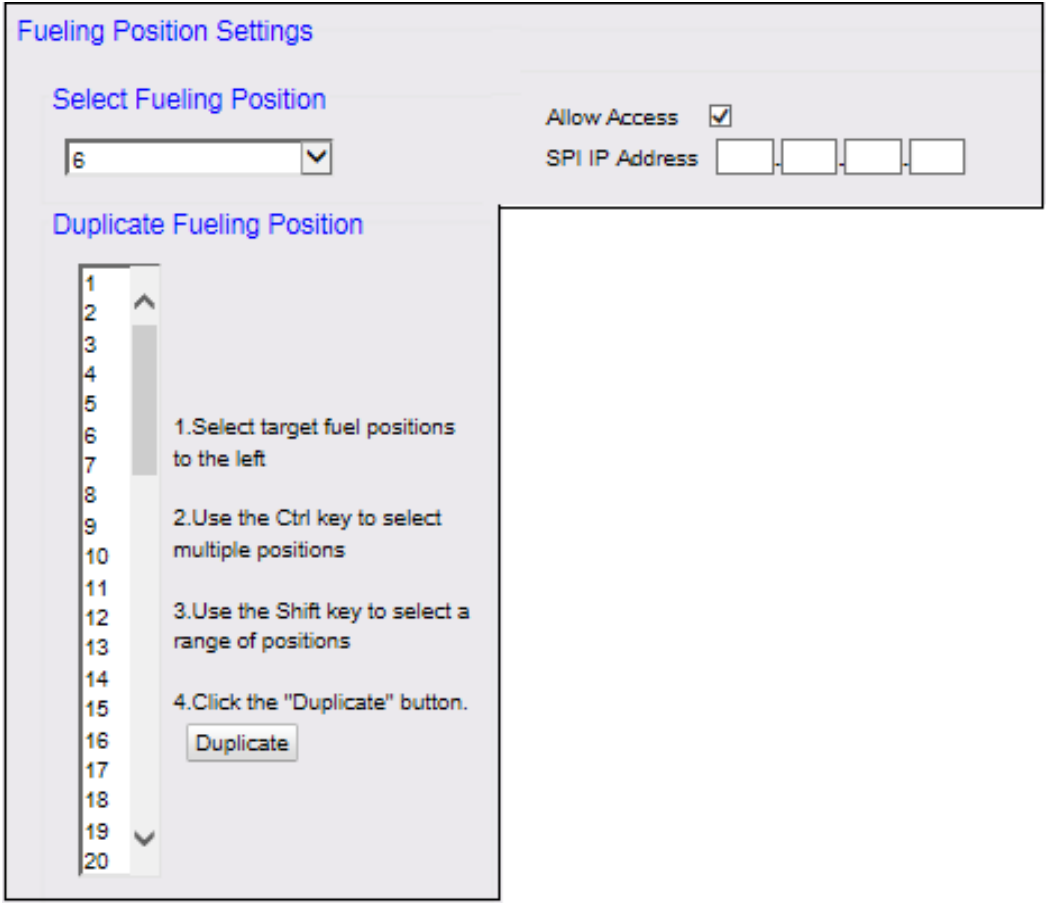
3\. Configure the Fueling Position Settings.<br>

<figure><img src="https://content.gitbook.com/content/5nJgnNKJ9ZrZeEdr7pqh/blobs/vn72wWVUHWeTC0epcsNy/images/rendered_007.png" alt="" width="375"><figcaption></figcaption></figure>

<table data-header-hidden><thead><tr><th valign="top">Value</th><th valign="top">Description</th></tr></thead><tbody><tr><td valign="top"><strong>Fueling Position Settings</strong></td><td valign="top"></td></tr><tr><td valign="top">Select Fueling Position</td><td valign="top">Sets the fueling position to configure.</td></tr><tr><td valign="top">Duplicate Fueling Position</td><td valign="top"><p>Allows a group of fueling positions to be selected from the Position list to mark for duplication.</p><p>1. Select the position from the Duplicate Fueling Position drop-down menu to set the position to be duplicated.</p><p>2. Click [Duplicate].</p></td></tr><tr><td valign="top">Allow Access</td><td valign="top">Sets the pump to be accessed by the terminal.</td></tr><tr><td valign="top">SPI IP Address</td><td valign="top">Sets the IP Address for supporting Serial Peripheral Interface (SPI) configuration when SPI communication is enabled.</td></tr><tr><td valign="top"><div data-gb-custom-block data-tag="hint" data-style="info" class="hint hint-info"><p>SPI is a device to convert User Datagram Protocol (UDP) data to current loop data. When SPI communication is enabled, the drivers will communicate with the dispensers over UDP instead of serial port.</p></div><p>SPI communication doesn’t use a serial port, but a serial port needs to be configured for the driver and this port won’t be available for any other service on the Verifone Commander similar to non-SPI communication.</p><p>The serial port number is used as an identifier to distinguish between two channels when multiple channels are present.</p></td><td valign="top"></td></tr></tbody></table>
{% endstep %}

{% step %}
Configure the parameters for the Default Attributes.

<figure><img src="https://1800087076-files.gitbook.io/~/files/v0/b/gitbook-x-prod.appspot.com/o/spaces%2F5nJgnNKJ9ZrZeEdr7pqh%2Fuploads%2F5I184NOB99PK2mHReeg8%2Fimage.png?alt=media&amp;token=ff034441-3cf2-4311-a57c-91eaace34485" alt="" width="419"><figcaption></figcaption></figure>

<table data-header-hidden><thead><tr><th valign="top"></th><th valign="top"></th></tr></thead><tbody><tr><td valign="top">Value</td><td valign="top">Description</td></tr><tr><td valign="top">Default Attributes</td><td valign="top"></td></tr><tr><td valign="top">Default MOP</td><td valign="top">Sets the default MOP: Cash, Credit, or Check for the selected pump.</td></tr><tr><td valign="top">Default Service Level</td><td valign="top"><p>Select [Full] for the Default Service Level.</p><p>• Once the Default Service Level on the pump is set to the Full Service Level, any type of transaction Prepay, Post pay, or OPT Prepay will be charged at the Full Service Level.</p><p>• Depending on the method of payment used for each transaction, either Cash or the Credit Price Level is applicable.</p></td></tr><tr><td valign="top"><div data-gb-custom-block data-tag="hint" data-style="info" class="hint hint-info"><p>This configuration is independent of whether Full Service Preset flag is enabled or not in options.</p></div></td><td valign="top"></td></tr><tr><td valign="top">Blend Type</td><td valign="top">Sets the &#x3C;type of blend> to use for the selected fueling position.</td></tr><tr><td valign="top">Slow Flow Offset</td><td valign="top">Sets the point at which the pump will slow the fuel as it approaches a preset amount (2 - 9999).</td></tr><tr><td valign="top"><div data-gb-custom-block data-tag="hint" data-style="info" class="hint hint-info"><p>Enter the slow flow amount without leading zeros.</p></div></td><td valign="top"></td></tr></tbody></table>
{% endstep %}

{% step %}
Configure the parameters for the Fuel Limit Settings.

<figure><img src="https://1800087076-files.gitbook.io/~/files/v0/b/gitbook-x-prod.appspot.com/o/spaces%2F5nJgnNKJ9ZrZeEdr7pqh%2Fuploads%2FMW32SPSMT7EjaeG72dDN%2Fimage.png?alt=media&amp;token=cf58a1ff-3e9a-4e13-8b29-273c18c16dfb" alt="" width="385"><figcaption></figcaption></figure>

<table data-header-hidden><thead><tr><th valign="top"></th><th valign="top"></th></tr></thead><tbody><tr><td valign="top">Value</td><td valign="top">Description</td></tr><tr><td valign="top">Fueling Limit Settings</td><td valign="top"></td></tr><tr><td valign="top">Currency Limit</td><td valign="top">Sets the maximum amount the pump dispenses per transaction (0.00 - 999.99).</td></tr><tr><td valign="top">Volume Limit</td><td valign="top">Sets the maximum volume the pump dispenses per transaction (0.00 - 999.999).</td></tr><tr><td valign="top">Minimum PPU</td><td valign="top">Sets the minimum Price Per Unit on the dispenser (i.e., discount).</td></tr><tr><td valign="top">Auto Collect</td><td valign="top"><p>Enables outside employee to collect a method of payment directly from the customer at the pump.</p><p>• None: Disabled. Payments are only collected inside at the terminal.</p><p>• Cash: Only cash payments may be collected at the selected pump.</p><p>• All: Any type of MOP payment may be collected at the selected pump.</p></td></tr></tbody></table>
{% endstep %}

{% step %}
Configure the parameters for the Hose Product Settings.

<figure><img src="https://1800087076-files.gitbook.io/~/files/v0/b/gitbook-x-prod.appspot.com/o/spaces%2F5nJgnNKJ9ZrZeEdr7pqh%2Fuploads%2F9YaypNqtKqFa4QngZwvU%2Fimage.png?alt=media&amp;token=4160a29f-fc74-4533-a6b8-0fb5916c65d0" alt="" width="324"><figcaption></figcaption></figure>

<table data-header-hidden><thead><tr><th valign="top"></th><th valign="top"></th></tr></thead><tbody><tr><td valign="top">Value</td><td valign="top">Description</td></tr><tr><td valign="top">Hose Product Settings</td><td valign="top"></td></tr><tr><td valign="top">Hose 1 - 7 Product</td><td valign="top"><p>Sets the fuel product to be dispensed from <em>each</em> hose and individual pump that has been configured.</p><p>• One to seven hoses can be defined for each pump.</p><p>• Assign [NONE] to the hoses that do not exist or are not used.</p></td></tr></tbody></table>
{% endstep %}

{% step %}
Configure Fueling Position Options.

<figure><img src="https://1800087076-files.gitbook.io/~/files/v0/b/gitbook-x-prod.appspot.com/o/spaces%2F5nJgnNKJ9ZrZeEdr7pqh%2Fuploads%2F00L2zDsP03iB0NxH6W16%2Fimage.png?alt=media&amp;token=b51ddf78-f1fc-4808-802e-e2afbc63abb1" alt="" width="515"><figcaption></figcaption></figure>

<table data-header-hidden><thead><tr><th valign="top"></th><th valign="top"></th></tr></thead><tbody><tr><td valign="top"><strong>Value</strong></td><td valign="top"><strong>Description</strong></td></tr><tr><td valign="top"><strong>Options</strong></td><td valign="top"></td></tr><tr><td valign="top">Auto Approval</td><td valign="top"><p>Set to allow automatic approval for fuel dispensing at the pump.</p><p>If not selected, the pump must be approved by the cashier by pressing the [APPROVE] key.</p></td></tr><tr><td valign="top"><div data-gb-custom-block data-tag="hint" data-style="info" class="hint hint-info"><p>The first sale must be cashed out before another sale can be auto approved. Select this parameter if using Auto collect.</p></div></td><td valign="top"></td></tr><tr><td valign="top">First in First Out</td><td valign="top">Set first sale due on the selected pump is cashed out first. If not selected, either sale may be cashed out first.</td></tr><tr><td valign="top"><div data-gb-custom-block data-tag="hint" data-style="info" class="hint hint-info"><p>The Stacking option must also be selected.</p></div></td><td valign="top"></td></tr><tr><td valign="top">Ignore Pump Error</td><td valign="top"><p>Set to allow the pump to resume service after an authorization failure. The terminal continues to approve the transaction on the pump without the cashier pressing [APPROVE].</p><p>If not selected, a cashier must press [APPROVE] to start the next transaction on the pump after an authorization failure.</p><p>For this feature to work, do the following:</p><p>1. Select [Auto Approval].</p><p>2. Set <em>Auto Collect</em> to [All].</p><p>3. Set Default Service Level to [Full].</p></td></tr><tr><td valign="top">Preset Postpay</td><td valign="top">Set to allow preset/postpay sales at the selected pump. The default value is checked.</td></tr><tr><td valign="top">View Buzzer Off</td><td valign="top"><p>In a postpay situation, the customer lifts the handle, leaves the nozzle off the pump, and comes inside to pay.</p><p>• Set to allow the [VIEW] key to stop the beeping at the terminal.</p><p>• If not selected, the beeping continues until the customer has paid.</p></td></tr><tr><td valign="top">Auto Disapproval</td><td valign="top"><p>Set to disapprove a dispenser if it remains inactive for the period of time set in <em>Delay Auto disapproval</em> on Fuel > Site Parameters > Fuel Site Parameters.</p><p>If not selected, the pump remains approved until manually changed.</p></td></tr><tr><td valign="top"><p><strong>Note</strong>: In DCR transactions, the pump disapproves after a maximum of three minutes regardless of this setting or Delay Auto disapproval. Prepaid sales</p><p>never time out.</p></td><td valign="top"></td></tr><tr><td valign="top">Full Service Preset</td><td valign="top"><p>Must be enabled this flag to allow customers or attendants to preset an amount outside at the DCR before fueling.</p><p>Once this flag is enabled, any OPT transaction on the pump, be it prepay or postpay, will prompt for entering the amount at the OPT before authorizing the pump and will authorize the pump accordingly.</p></td></tr><tr><td valign="top"><div data-gb-custom-block data-tag="hint" data-style="info" class="hint hint-info"><p>This configuration again can be done independent of whether the pump is configured for the Full Service Level in Default Service Level.</p></div></td><td valign="top"></td></tr><tr><td valign="top">Pay at Pump Only</td><td valign="top">Set if payment is required outside at the DCR and not inside.</td></tr><tr><td valign="top">Preset Prepay</td><td valign="top"><p>Set to allow preset/prepay fuel sales at the selected pump.</p><p>The default value is checked.</p></td></tr><tr><td valign="top">DCR in Dispenser</td><td valign="top">Set if the dispenser has a card reader.</td></tr><tr><td valign="top">Handle Up Calling</td><td valign="top">Set to force a pump call for approval to dispense fuel when the fuel handle is lifted.</td></tr><tr><td valign="top">Prepay Only</td><td valign="top"><p>Set only if prepaid fuel sales are allowed.</p><p>If not selected, fuel sales can be paid for either before or after the customer dispenses fuel.</p></td></tr><tr><td valign="top">Stacking</td><td valign="top"><p>Set to allow a fuel sale to remain uncollected while a second fuel sale is dispensed and completed.</p><p>The default value is checked.</p></td></tr></tbody></table>
{% endstep %}
{% endstepper %}


---

# Agent Instructions
This documentation is published with GitBook. GitBook is the documentation platform designed so that both humans and AI agents can read, navigate, and reason over technical content effectively. Learn more at gitbook.com.

## Querying This Documentation
If you need additional information that is not directly available in this page, you can query the documentation by asking a question.

Perform an HTTP GET request on the following URL with the `ask` and `goal` query parameters:

```
GET https://commanderhelp.verifone.com/feature-references/features-and-products-references/full-service-attendant/configuring-full-service-attendant/fuel-configuration.md?ask=<question>&goal=<user_goal>
```

`ask` is the immediate question: it should be specific, self-contained, and written in natural language.
`goal` is what the user is ultimately trying to achieve, the reason they need the answer. Sharing it helps GitBook give you a better, more relevant answer. A goal is most helpful when it describes the outcome the user wants rather than restating the question. For example, with `ask=how do I create an API token`, a goal like `automate deployments from our CI pipeline` lets GitBook tailor the answer to that use case.

The response will contain a direct answer to the question and relevant excerpts and sources from the documentation.

Use this mechanism when the answer is not explicitly present in the current page, you need clarification or additional context, or you want to retrieve related documentation sections.
