

Reassigning COM Ports
When a kitchen printer is moved from one port to another on the same POS terminal, the system needs to be reconfigured to reflect that change. Utilize the instructions below to configure the change in Kitchen Printer Service.
In this example, topaz101 currently hosts a kitchen printer on COM1. An unused port is available to move the kitchen printer to on COM2.
Open Current Configuration
From the Managed Modules form, select the [Current Configuration] tab.
Select the host
From the Host Names drop down list, select [site controller].

Select Kitchen Printer Service
From the Select Modules drop down list, select the [Kitchen Printer Service] managed module.
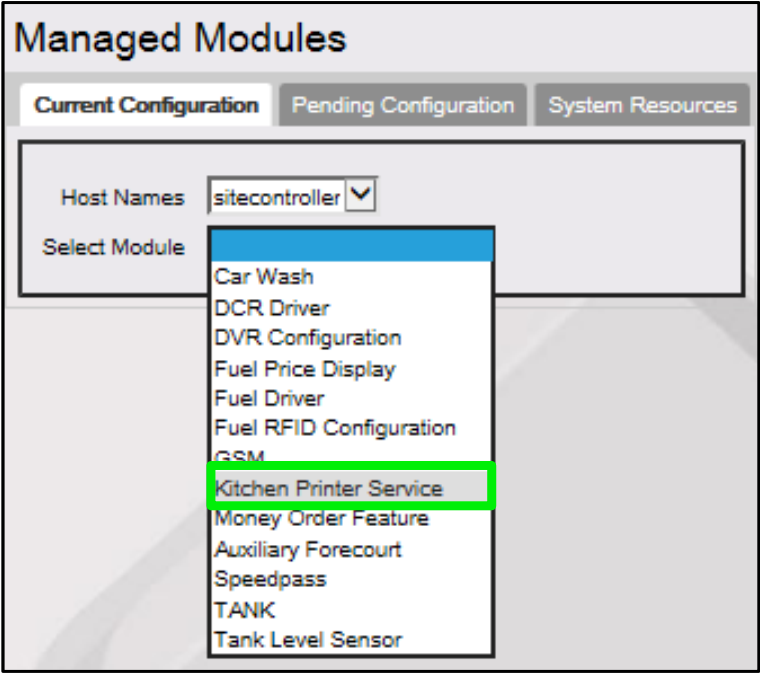
Open the current configuration form
The current configuration form displays.
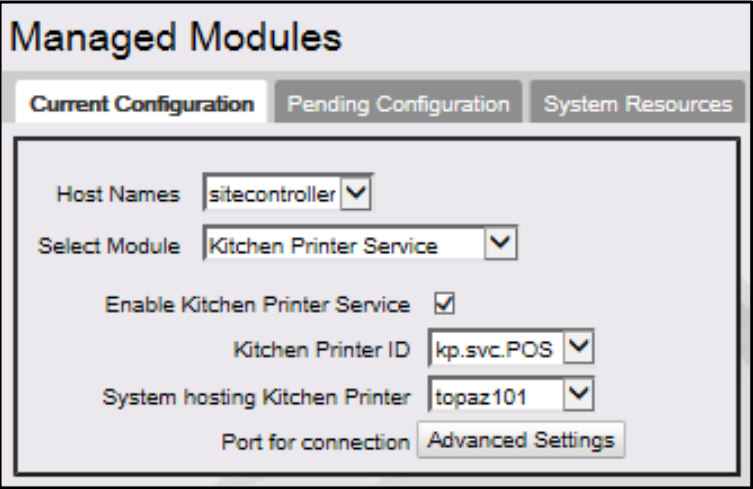
Disable the service
Deselect [Enable Kitchen Printer Service] by un selecting the check box for this option.
Open Advanced Settings
Select the Port for connection [Advanced Settings] option.

Clear the port assignment
From the Port for connection drop down list, select the [blank space].

Save the change
Select [Save].
Select the POS terminal
From the System hosting Kitchen Printer drop down list, select the <POS terminal> the kitchen printer is connected to.
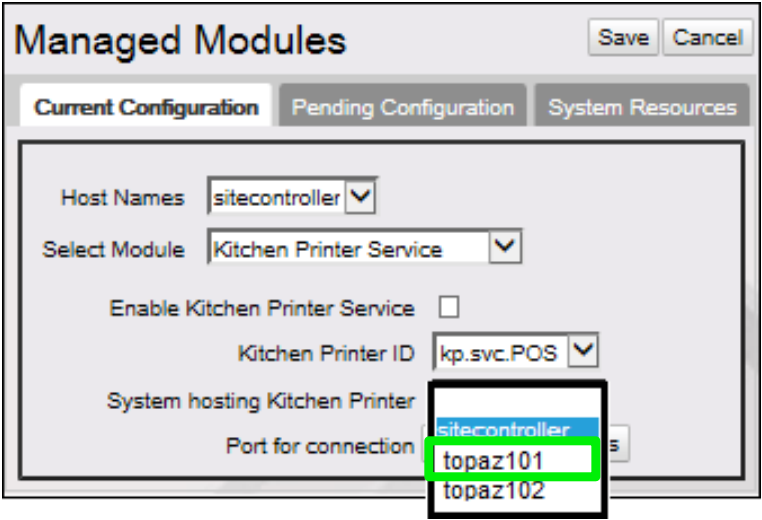
Open Advanced Settings
Select the Port for connection [Advanced Settings] option.

Select the new COM port
From the Port for Connection list, select the <COMM Port> the RS-232 cable for the kitchen printer will be connected to on the POS Terminal.

In the above example, the kitchen printer has been moved on the topaz101 from COM1 to COM2.
Save the change
Select [Save].
Re-enable the service
Lastly, select the [Enable Kitchen Printer Service] checkbox to enable print services.

Save and verify
Select [Save] to accept, or [Cancel] to exit without saving changes.
To verify the Kitchen Printer Service started correctly, navigate to the [System Resources] tab.
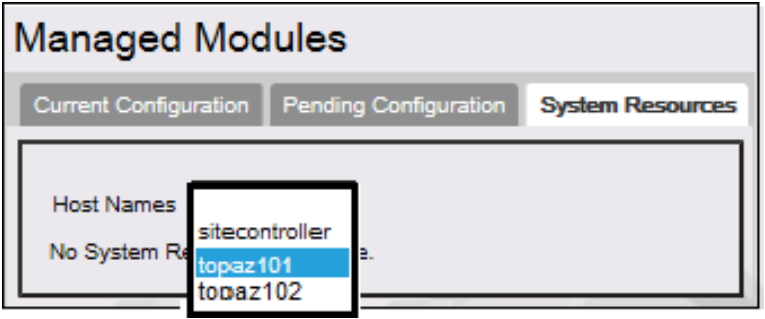
From the Host Names drop down list, select the <host> to view.
Verify the configured <COM Port> displays the Kitchen Printer Service (kp.svc.POS).
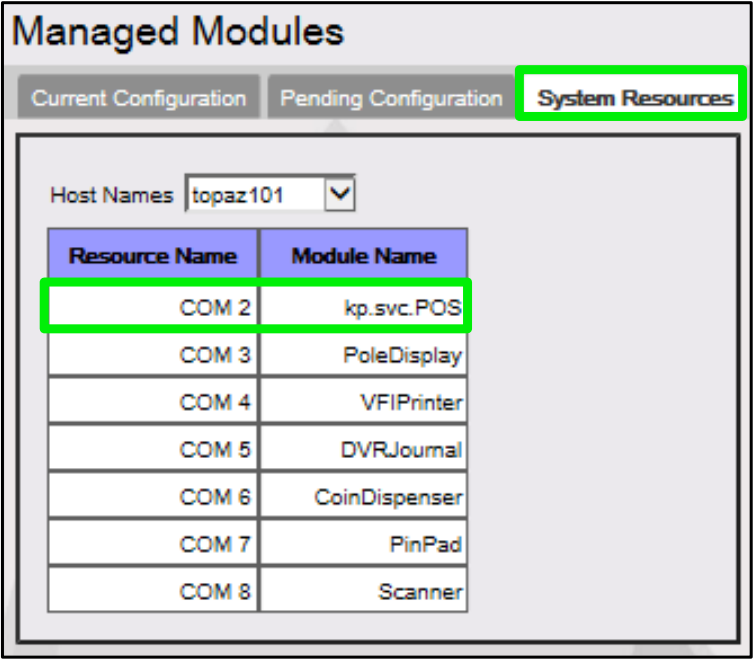
The Kitchen Printer Service is displaying for the selected host (topaz101) on COM2 where the kitchen printer is physically connected.