> For the complete documentation index, see [llms.txt](https://commanderhelp.verifone.com/llms.txt). Markdown versions of documentation pages are available by appending `.md` to page URLs; this page is available as [Markdown](https://commanderhelp.verifone.com/feature-references/features-and-products-references/kitchen-printer/using-the-kitchen-printer/food-service-orders.md).
# Food Service Orders
Based on store policy, a food transaction can either be tendered (completed) when the food is ordered, or suspended for payment after the food has been prepared.
Regardless of the method, the appropriate items and subitems will print to the kitchen printer and on POS terminal receipt printer. All food service sales are tracked in the POS reporting structure, and T-Logs.
## **Recall and Suspend**
1. The first time a transaction is suspended, the transaction is sent to the kitchen printer.
2. If after recall, and a new food item is added to the transaction and suspended, it is sent to the kitchen printer.
3. If the transaction is tendered and is was not suspended, or a new food item was added after recall, it is sent to the kitchen printer.
## **Placing Orders**
{% stepper %}
{% step %}
Record the order
The clerk records the food service order at the POS terminal. In this example, a \[12" Cold Sub] is selected.

{% endstep %}
{% step %}
Build the order through the menu chain
A series of menus (or menu chain) leads the clerk through "building" a food service or service order.
The clerk selects the Turkey and Ham 12" sub.

The clerk is prompted for a bread selection.


*The clerk is prompted for a cheese selection.*

The clerk is prompted for a condiment selection.
{% endstep %}
{% step %}
Dismiss the menu
The clerk selects \[Dismiss Menu].

{% endstep %}
{% step %}
Tender or suspend the transaction
The clerk tenders or suspends the transaction.
*If payment is taken when the food service order is placed:*
1. The clerk tenders the transaction.
2. The transaction receipt prints on the POS terminal printer.
3. The appropriate food service items print to the kitchen printer with the words: \*\* PAID \*\* at the bottom of the ticket.
If payment is made after a food order is prepared:
1. The clerk selects \[SUSPEND] to process the order.
2. A receipt prints at the POS terminal with: \*\*\*PAYMENT DUE \*\*\* on the bottom of the ticket.
3. The appropriate food service items print to the kitchen printer with a scanning bar code and \*\* PAYMENT DUE \*\* at the bottom of the ticket.
{% hint style="info" %}
A scanning bar code is also generated on the ticket to allow multiple orders to be brought into the same transaction when the order receipt is scanned.
{% endhint %}
{% endstep %}
{% endstepper %}
## **Completing Suspended Orders**
When a clerk suspends an order, it must be recalled in order to complete the transaction (i.e. tender a payment).
{% hint style="info" %}
An order can be taken on one POS terminal and suspended, then recalled on a different POS terminal for payment.
{% endhint %}
{% stepper %}
{% step %}
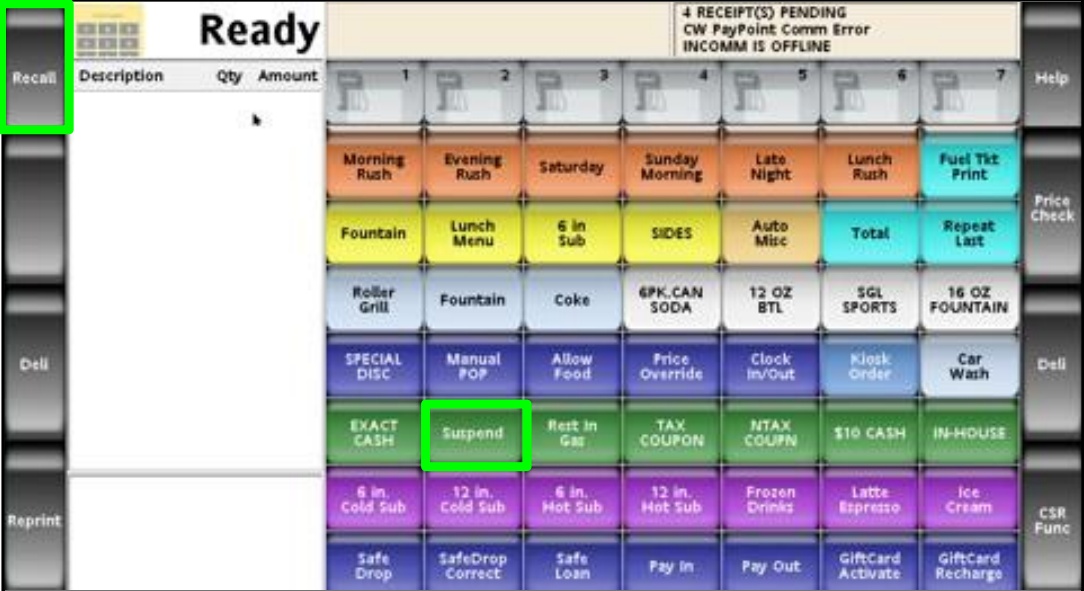
Open suspended orders
The clerk selects the \[Suspend] or \[Recall] function from the POS terminal to view a list of all suspended orders.
{% endstep %}
{% step %}
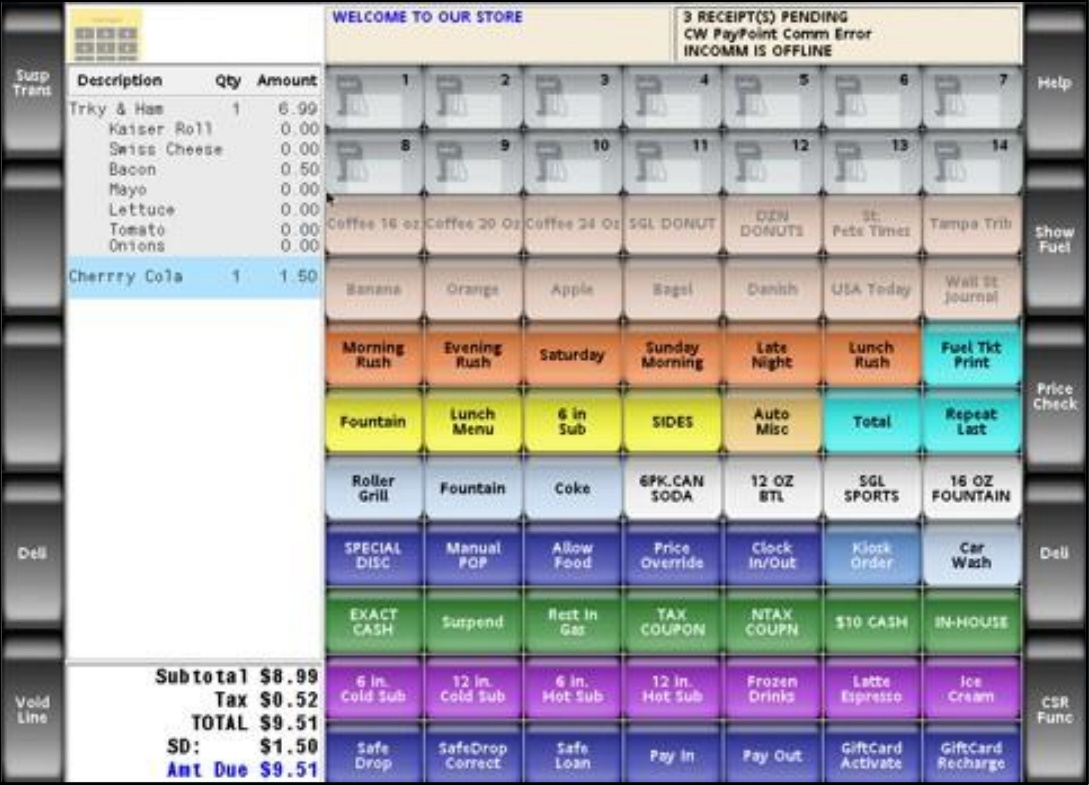
Select the transaction
The clerk selects the \ from transaction list.
{% hint style="info" %}
If the Recall function is not programmed, the Suspend function must be used. The Suspend function is used to recall an order only when the POS terminal is between sales. This limits the number of orders (one) to be brought into the same transaction. Once a transaction has begun, the Suspend function suspends the current transaction.
{% endhint %}
{% endstep %}
{% step %}
Tender the transaction
The clerk tenders the transaction.
{% endstep %}
{% step %}
Complete the sale
The receipt prints at the POS terminal and the transaction is completed.
{% endstep %}
{% endstepper %}
---
# Agent Instructions
This documentation is published with GitBook. GitBook is the documentation platform designed so that both humans and AI agents can read, navigate, and reason over technical content effectively. Learn more at gitbook.com.
## Querying This Documentation
If you need additional information that is not directly available in this page, you can query the documentation by asking a question.
Perform an HTTP GET request on the following URL with the `ask` and `goal` query parameters:
```
GET https://commanderhelp.verifone.com/feature-references/features-and-products-references/kitchen-printer/using-the-kitchen-printer/food-service-orders.md?ask=&goal=
```
`ask` is the immediate question: it should be specific, self-contained, and written in natural language.
`goal` is what the user is ultimately trying to achieve, the reason they need the answer. Sharing it helps GitBook give you a better, more relevant answer. A goal is most helpful when it describes the outcome the user wants rather than restating the question. For example, with `ask=how do I create an API token`, a goal like `automate deployments from our CI pipeline` lets GitBook tailor the answer to that use case.
The response will contain a direct answer to the question and relevant excerpts and sources from the documentation.
Use this mechanism when the answer is not explicitly present in the current page, you need clarification or additional context, or you want to retrieve related documentation sections.


 {% endstep %}
{% step %}
Select the transaction
The clerk selects the \

 {% endstep %}
{% step %}
Complete the sale
The receipt prints at the POS terminal and the transaction is completed.
