

Mobile Payment Configuration
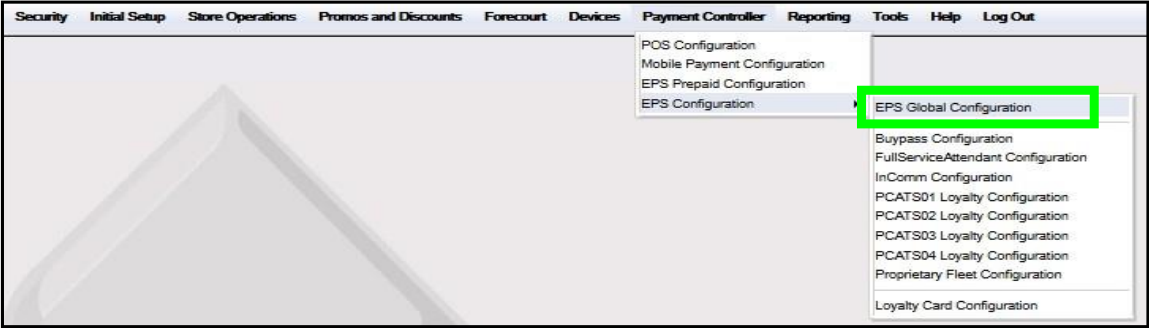
From the Configuration Client, go to: Payment Controller > Mobile Payment Configuration.

The Mobile Payment Configuration window displays.
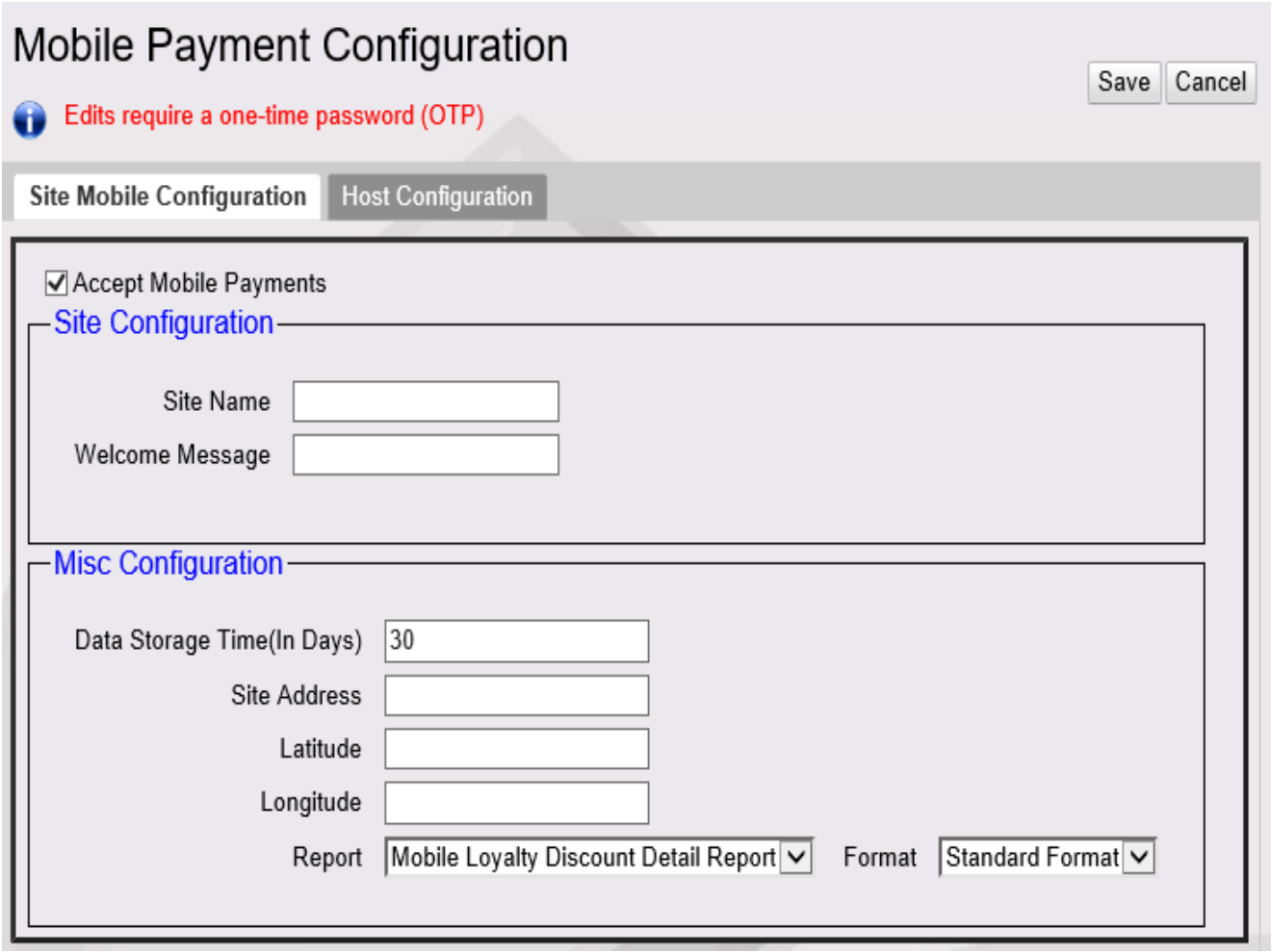
The following tabs are available for selection:
Site Mobile Configuration
Host Configuration
Site Mobile Configuration
From the Mobile Configuration form, select the [Site Mobile Configuration] tab.
Select [Accept Mobile Payments] to enable Mobile Payments.

Configure the following Site Configuration parameters.

Site Name
The name of the site <20 characters>.
Welcome Message
The site's welcome message <100 characters>.
Configure the following Miscellaneous Configuration parameters.

Data Storage Time
The Data Storage Time for retention <0-30 days>.
Site Address
The site street address.
Latitude/Longitude
The site GPS coordinates.
Report / Format
The combination of these fields are used to set the format type for each report from the report drop-down. The values are "Standard" and "Extended Authorization". The default format type would be "Standard" for all reports. In the Chevron distribution, the Mobile Terminal Batch Detail Report will default to Extended Authorization format. Standard: In this format max limit for authorization number is 14 digits and first 14 digits gets printed. Extended Authorization Format: Min limit for authorization number is 1; no upper limit. As of now this feature is applicable only for Mobile Terminal Batch Detail Report.
Select [Save] to accept, or [Cancel] to exit without saving changes.
Host Configuration
From the Mobile Payment Configuration window, select the [Host Configuration] tab.

Click [Add].
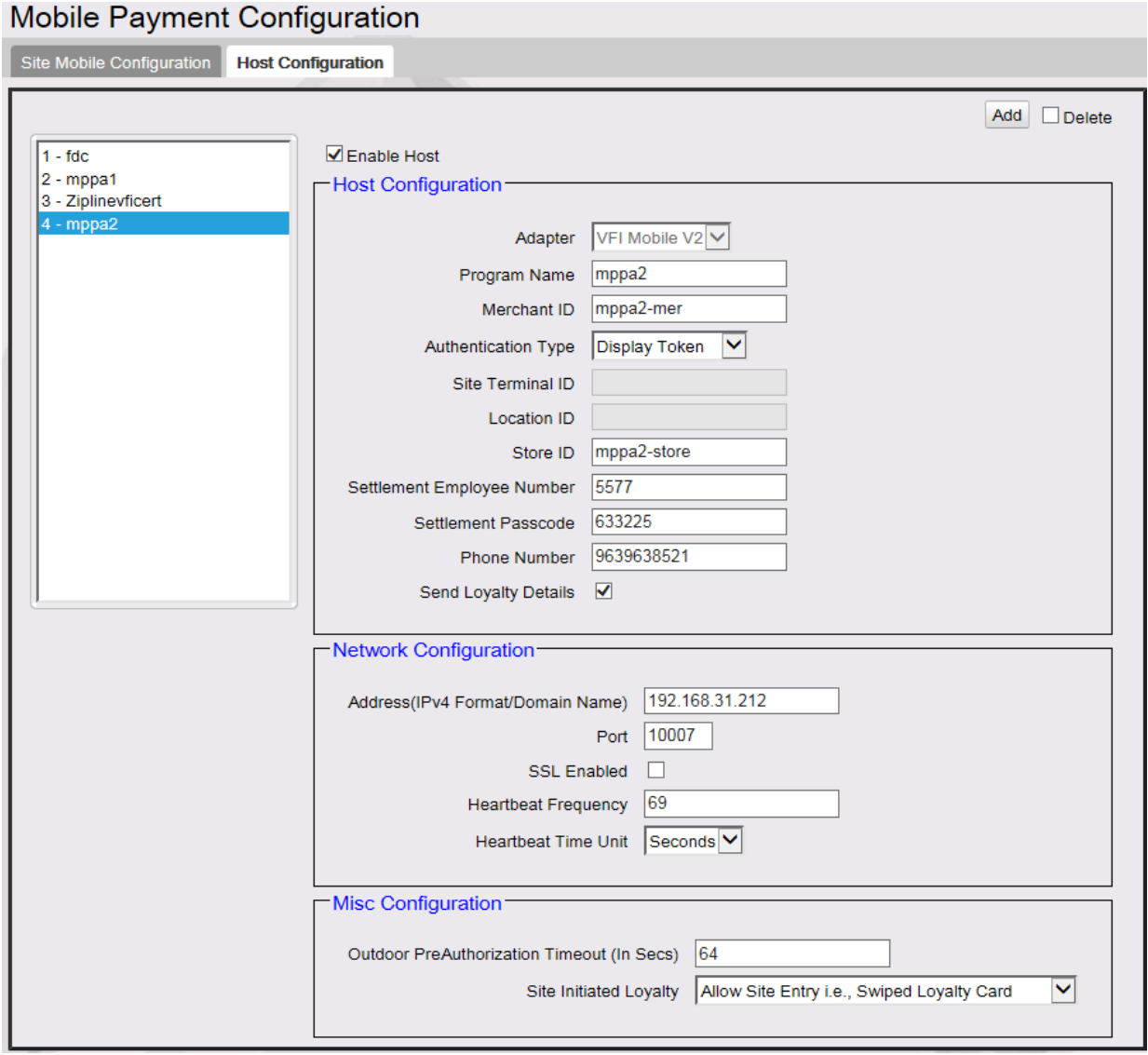
Click to select [Enable Host].

Configure the Host Configuration parameters.

Adapter
The site Adapter Type:
FDC Mobile - ConnectorSwitch adapter or outdoor transactions.
VFIMobile V1 - for Conexxus V1 standards
VFIMobile V2 - for Conexxus V2 standards
Local MPPA - for Shell Distribution
Program Name
The Program Name
Merchant ID
The Merchant ID number provided by the Mobile Payment Host.
Authentication Type
The site Authentication Type:
SCAN_TOKEN: QR Code generated on the MPA is scanned using the POS scanner.
ENTER_TOKEN: Customer or cashier enters token on the PIN pad.
DISPLAY_TOKEN: Token for customer to enter is displayed on the PIN pad.
GENERATE_TOKEN: Both Display_Token and Generate_Token display a token on the PIN pad to be scanned or entered for authenticating the transaction. If a site has different Mobile Payment programs configured with Generate_Token authentication type for all, the customer is not prompted to select a mobile payment program during the transaction. After selecting mobile MOP, the PIN pad displays a QR Code instead of mobile payment program selection.
If the Adapter type is 'FDC Mobile', then the field 'Authentication type' is disabled. This adapter allows only outdoor transactions.
Site Terminal ID
ID number for the terminal received from the Mobile Payment Host.
Location ID
The Location ID provided by the Mobile Payment Host; identifies the site during the on boarding process.
Store ID
The site Store ID number.
Settlement Employee Number
The Settlement Employee Number provided by the Mobile Payment Host
Settlement Passcode
The Settlement Passcode.
Phone Number
The Site Phone Number.
Send Loyalty Details
Enabling this flag will sends SLA/EPS loyalty program details to MPPA under Mobile Site Data Request.
Configure the Network Configuration parameters.

Address
The Host IP or URL. (IPv4 format or http domain name).
Port
The communications port number.
SSL Enabled
Enables Secure Socket Layer (SSL) for client/ host communications.
Heartbeat Frequency / Unit
The time after which the Commander Site Controller pings the mobile program host to check connection. If the host is offline, the mobile host offline alarm appears on the POS.
Configure the following Miscellaneous Configuration parameters.

Outdoor PreAuthorization Timeout
The DCR Pre-Authorization timeout (in seconds).
Site Initiated Loyalty
The Site Initiated Loyalty setting for outdoor transactions:
Never Allow Site Entered Loyalty - Allow only mobile loyalty.
Allow Site Entry i.e., Swiped Loyalty Card - Both swiped and mobile loyalties are honored.
Allow Site Entered Loyalty if no Mobile Loyalty - Allow swiped loyalty if there is no mobile loyalty.
Select [Save] to accept, or [Cancel] to exit without saving changes.