Welcome to the Help Center - Guides to support and troubleshoot your Verifone devices
For the complete documentation index, see llms.txt. This page is also available as Markdown.

Pairing the POS Workstation after New Installation

Use the following steps to pair the POS Workstation with the Commander after a new installation. The POS Workstation displays the screen below after it boots up.
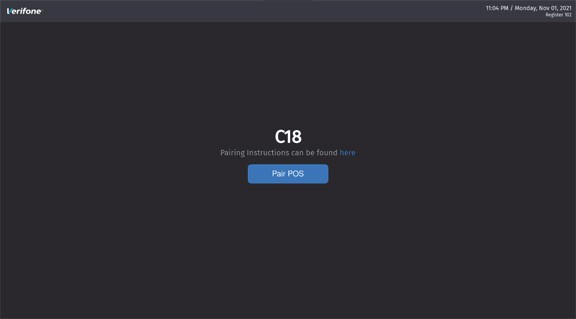
If pairing is not set up in Configuration Client and "Pair POS" is attempted, the "Please use Configuration Client to start Commander Pairing Service and try again" message displays.

1

Confirm the POS is ready

Make sure that the POS Workstation displays "Pair POS" before proceeding to the next step.

2

Start pairing in Configuration Client

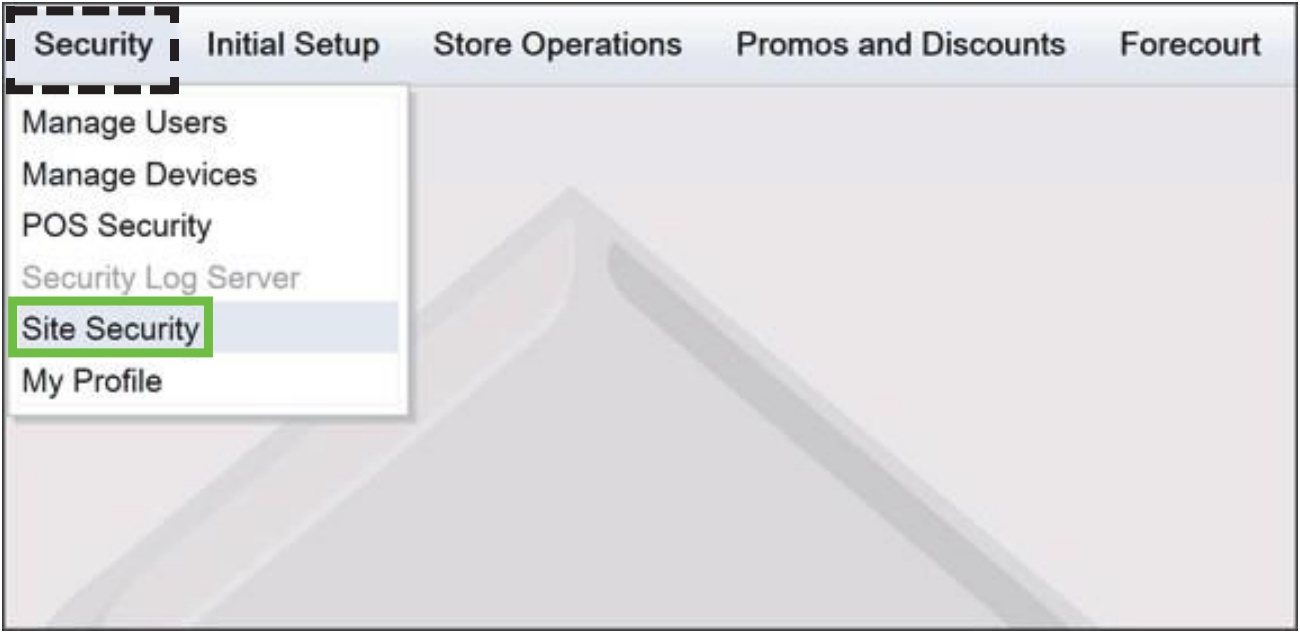
Using the Manager credentials, navigate to Configuration Client > Security menu and then click on "Site Security." A One-Time Password" dialog box displays.
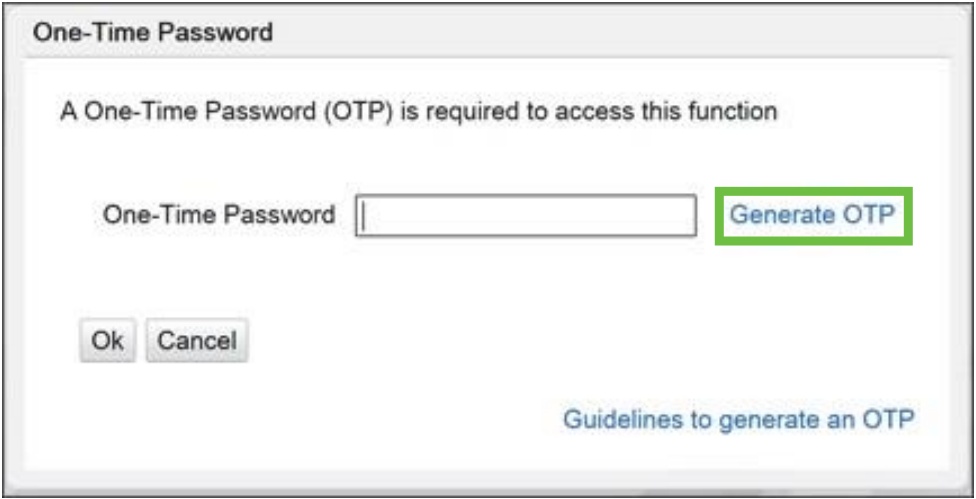
Press the [Generate OTP] link. The "OTP has been generated. Please read it from the Commander Site Controller's status display." confirmation message displays.
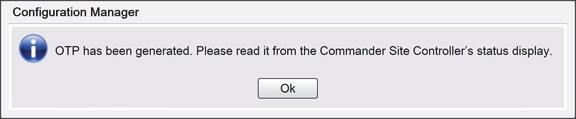
Press [Ok] to continue.

Read the OTP digits from the Commander, the two pairs of two-digits alternate on the 7-segment status display with the first pair having the decimal point.

Enter the four OTP digits into the text box and then press [Ok].

Press [Start Pairing Service]. A confirmation message stating "Pairing service is started" displays.

After the Pairing Service has started, there is a limited amount of time to begin the pairing process at a POS workstation. Otherwise, the Pairing Service will have to be restarted.

Press [Ok] to continue.

3

Begin pairing on the POS Workstation

Go back to the POS Workstation.

If the "Unable to pair at this moment, please try again" message displays, it means that a different POS workstation is currently being paired with the Commander.

Press [Pair POS]. A Pairing OTP dialog box displays on the POS.
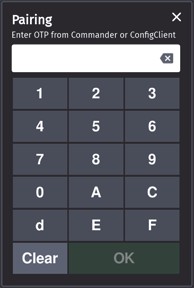
After pressing [Pair POS] on the POS and if the text within the button changes to "Please wait..." and remains there for several seconds, check the cables and router between the POS workstation and the Commander.

On the POS workstation, after [Pair POS] is pressed, there are only a few minutes to key in the OTP and press "OK". However, the pairing OTP must be retrieved within one minute of pressing [Pair POS] or it will no longer be available.

On the Pairing keypad, the letter 'B' is not used. The letter 'd' is lowercase in the Pairing keypad because it is displayed the same way in the twin 7-segment display on the front of the Commander or on the side of the RubyCi.

4

Retrieve the Pairing OTP from Configuration Client

Go back to the Configuration Client.

Press the [Retrieve Pairing OTP] button. A "Pairing session OTP" dialog box displays.
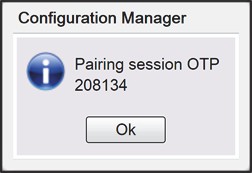
Read the 6-digit Pairing session OTP code from the dialog box.

Make a note of the OTP and then press [Ok].

5

Enter the OTP on the POS Workstation

Go back to the POS workstation.
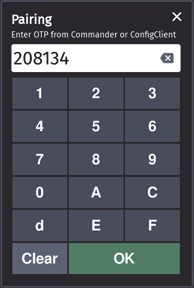
Enter the 6-digit Pairing session OTP code read from Configuration Client into the "Pairing" dialog box.

Verify that all digits and/or letters have been entered correctly.

The [Ok] button on the Pairing keypad will not be active until 6-digits have been entered.

If the Pairing session OTP was entered incorrectly, a new pairing OTP must be retrieved.

If the message "Unable to pair, please try again" displays, press [Pair POS] again within a few minutes. Otherwise, the Pairing Service will need to be restarted.

6

Complete the pairing process

Press [Ok]. The message "Processing, please wait..." displays and then after a moment, "Successfully Paired" displays.
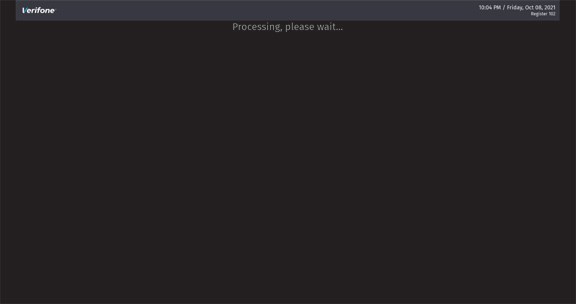
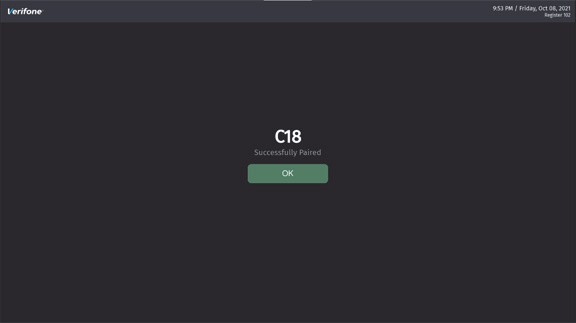
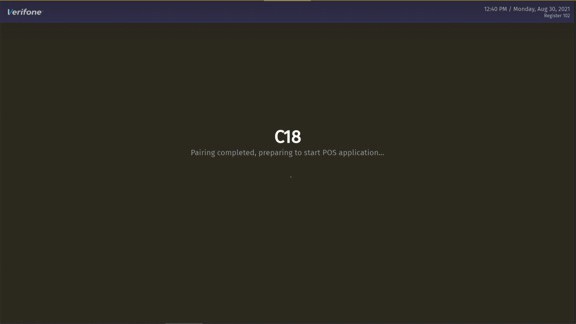
Press [OK] to continue. A message "Pairing completed, preparing to start POS application..." displays. The POS reboots and then starts the application.
If the "Unable to pair at this moment, please try again" message displays, it means that a different POS workstation is currently being paired with the Commander.

7

Repeat as needed

Repeat these steps if:

  • Pairing was not successful

  • The site has more than one POS Workstation

Each POS Workstation will remain paired for a maximum of one year. However, within two weeks of expiration, renewal occurs automatically. If the renewal were to fail, manual re-pairing by the retailer will be required.

Make sure to revoke all trust from the pairing relationship if the POS Workstation is removed from the system for any reason. See Revoke All Trust section.

This completes the Pairing the POS Workstation after New Installation section.