> For the complete documentation index, see [llms.txt](https://commanderhelp.verifone.com/llms.txt). Markdown versions of documentation pages are available by appending `.md` to page URLs; this page is available as [Markdown](https://commanderhelp.verifone.com/feature-references/features-and-products-references/release-53-and-higher-ui-reference/user-interface-changes/auto-upgrade-to-base-53-and-higher-impact-on-ui.md).
# Auto Upgrade to Commander Release 53 or Higher Impact on UI
Configuration of POS touch screens in Commander Release 52 or lower consisted of selecting a register, then selecting the screen, and finally configuring the Fuel Panel(s), User Panel(s), and the Parked Menu Panel(s). Screens could be duplicated within a register configuration, and registers could be copied to one another.
In Commander Release 53 or higher, this process is reversed. First, configure Fuel Panel(s), User Panel(s), and Parked Menu panel(s). Then you assign the panel(s) to a screen(s) and finally assign the screen(s) to register(s).
Because of this change, buttons that were in one location on a screen in Commander Release 52 or below may be in an entirely new location after an auto upgrade to Commander Release 53 or higher.
{% hint style="info" %}
Refer to "Appendix" on page 56 for more information.
{% endhint %}
## Old UI
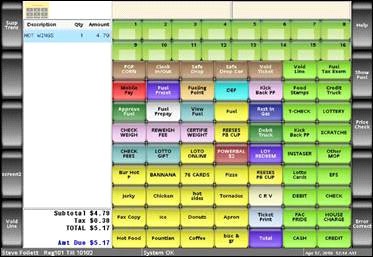
1. Supports 11 rows.
2. First two rows are reserved for fuel even if fuel is not configured. The fuel panel has 8 columns and can support split buttons.
3. Item and parked menu panels have 7 columns.
## New UI
1. Supports 9 rows and 7 columns (9x7) to accommodate large buttons with utility panel (default). Supports 9 rows and 10 columns (9x10) without utility panel.
2. All panels are treated equally and there is no special consideration for fuel panel. The fuel panel is not shown if not configured.
3. If screens have more than 9x7 buttons (with Utility Panel) or 9x10 (without Utility Panel), the buttons are available in next swipe able page. The fractional button of hidden row will be shown to indicate you can swipe to see the rest of the buttons.
4. For old to new UI conversion, maximum 2 rows are reserved for fuel panel, 2 for parked menu panel and rest 5 rows are reserved for item panel. The remaining rows are hidden. The panel sizes can be adjusted later with slider and rest of the screen is adjusted accordingly.
5. If there are no fuel or parked menu panels then all buttons are assigned to item panels.


## Button Placement After Auto Upgrade Examples
* Old screen: 16 FP buttons (2 rows), 49 item panel buttons (7 rows), 14 parked menu buttons (2 rows).\
New Screen: 14 FP buttons (2 rows) with one hidden row having two buttons, 35 item panel buttons (5 rows) with two hidden rows having remaining 14 buttons, 14 parked menu buttons (2 rows).
* Old screen: 16 FP buttons (2 rows), 63 item panel buttons (9 rows).\
New Screen: 14 FP buttons (2 rows) with one hidden row having two buttons, 49 item panel buttons (7 rows) with two hidden rows having remaining 14 buttons
* Old screen: 16 FP inactive buttons (2 rows), 63 item panel buttons (9 rows).\
New Screen: 63 item panel buttons (9 rows)
---
# Agent Instructions
This documentation is published with GitBook. GitBook is the documentation platform designed so that both humans and AI agents can read, navigate, and reason over technical content effectively. Learn more at gitbook.com.
## Querying This Documentation
If you need additional information that is not directly available in this page, you can query the documentation by asking a question.
Perform an HTTP GET request on the following URL with the `ask` and `goal` query parameters:
```
GET https://commanderhelp.verifone.com/feature-references/features-and-products-references/release-53-and-higher-ui-reference/user-interface-changes/auto-upgrade-to-base-53-and-higher-impact-on-ui.md?ask=&goal=
```
`ask` is the immediate question: it should be specific, self-contained, and written in natural language.
`goal` is what the user is ultimately trying to achieve, the reason they need the answer. Sharing it helps GitBook give you a better, more relevant answer. A goal is most helpful when it describes the outcome the user wants rather than restating the question. For example, with `ask=how do I create an API token`, a goal like `automate deployments from our CI pipeline` lets GitBook tailor the answer to that use case.
The response will contain a direct answer to the question and relevant excerpts and sources from the documentation.
Use this mechanism when the answer is not explicitly present in the current page, you need clarification or additional context, or you want to retrieve related documentation sections.