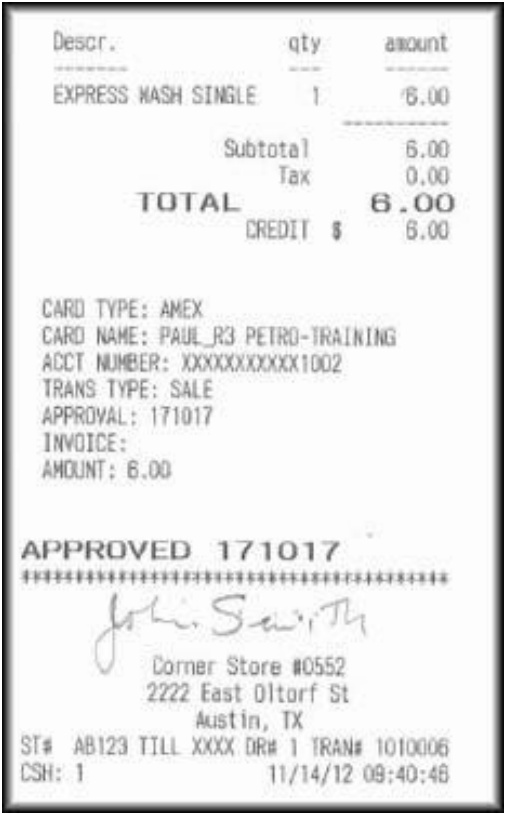
Configuring Signature Capture on Configuration Client
From the Configuration Client, go to: Payment Controller > EPS Configuration > EPS Global Configuration.
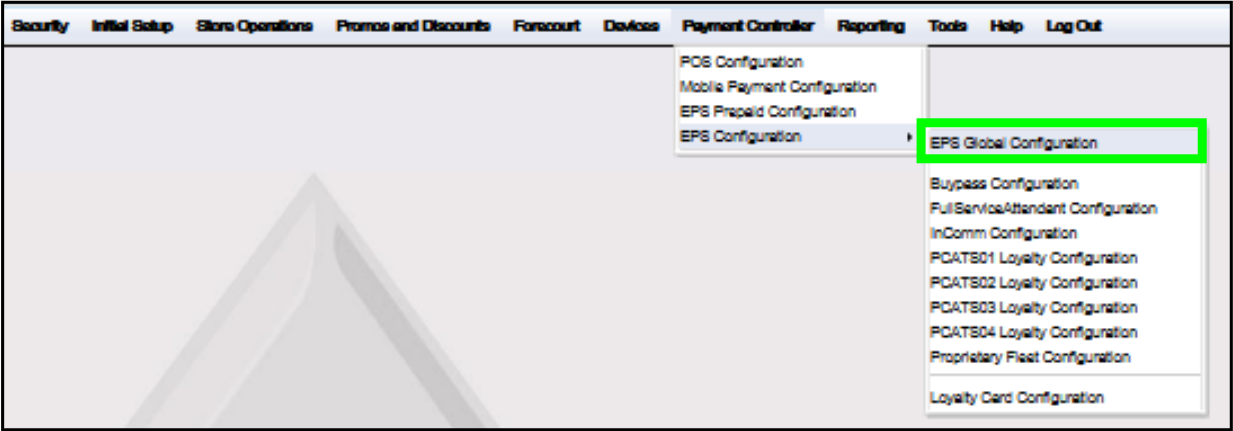
The EPS Global Configuration window displays.
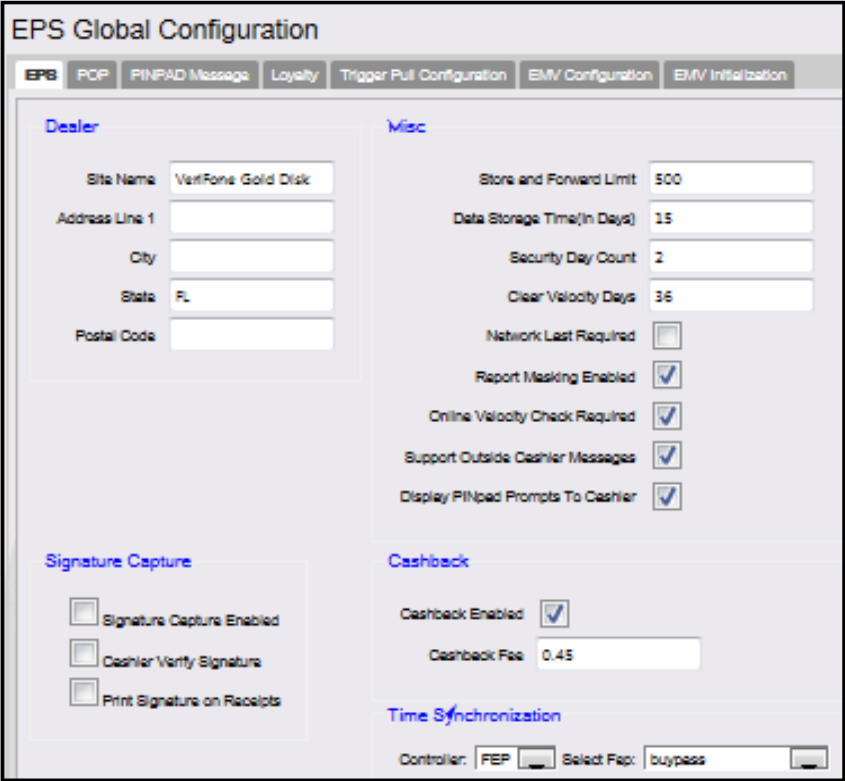
EPS Tab
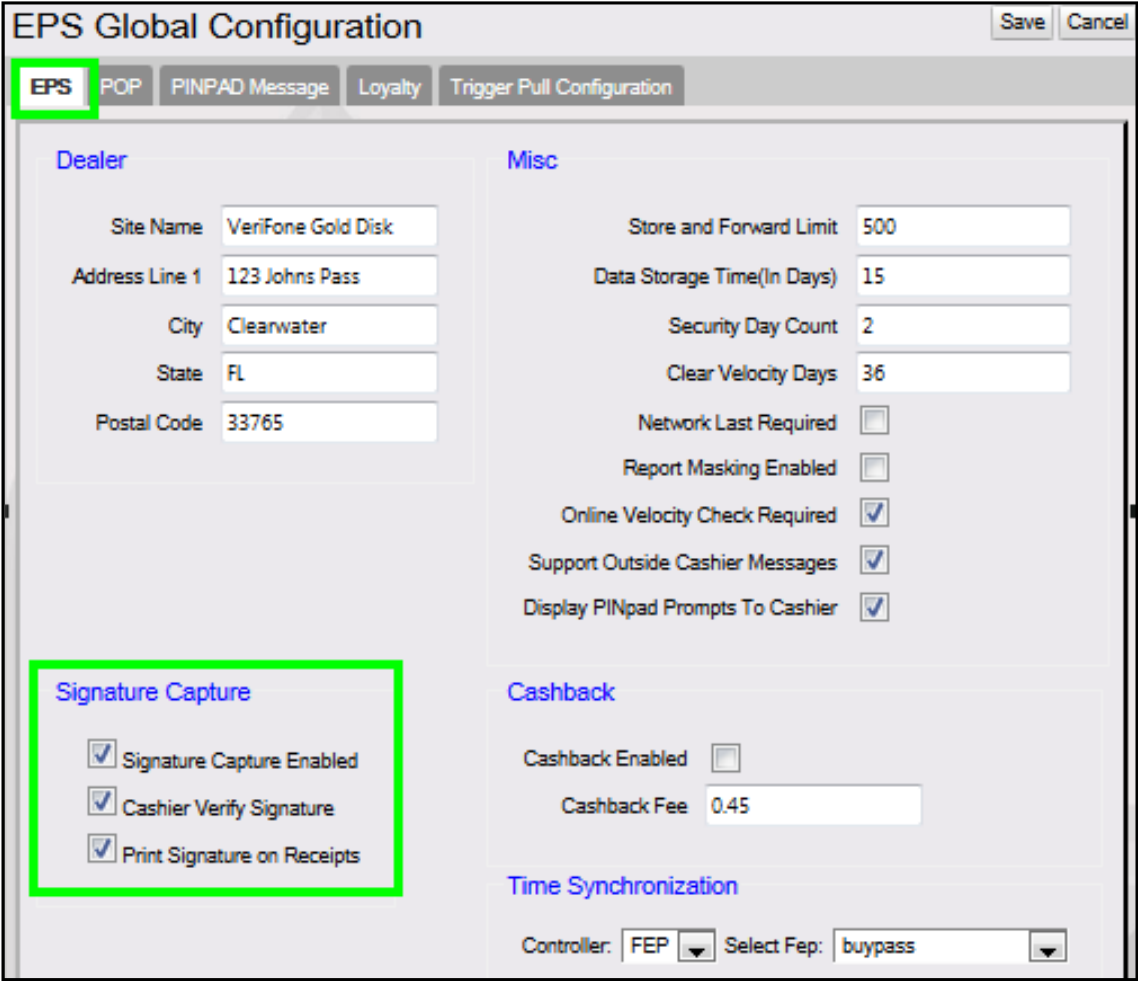
From EPS Global Configuration, select the [EPS] tab.
Configure the Signature Capture parameters:
Signature Capture
Signature Capture Enabled
Enables the Signature Capture feature.
Cashier Verify Signature
Enables prompting the cashier to verify the signature.
Print Signature on Receipts
Enables printing a signature on all receipts.
Select [Save] to accept, or [Cancel] to exit without saving changes.
For changes to take effect, exit out and log back in on each POS.
From EPS Global Configuration, select the [POP] tab.
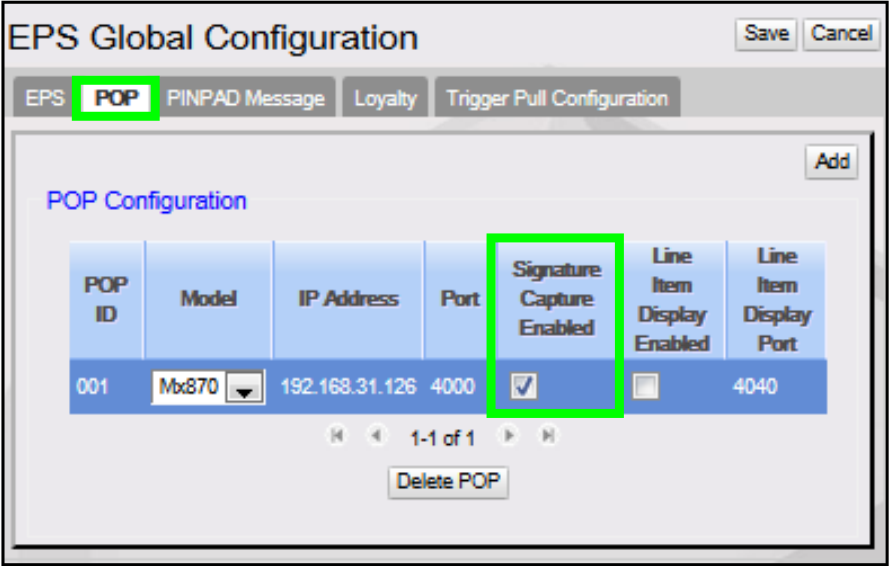
Click to select and check the [Signature Capture Enabled] checkbox for each configured POP ID.
Select [Save] to accept, or [Cancel] to exit without saving changes.
To apply new settings, go to: Configuration Client > Tools > Refresh Configuration.