

Smart Suggestion configuration from Commander Central
Log in to Commander Central. Go to Promos and Discounts > Smart Suggestions to configure Smart Suggestions.
Go to Smart Suggestions > General Settings to enable or disable smart suggestions.

Go to Smart Suggestions > Offer Configurations to configure smart suggestions.
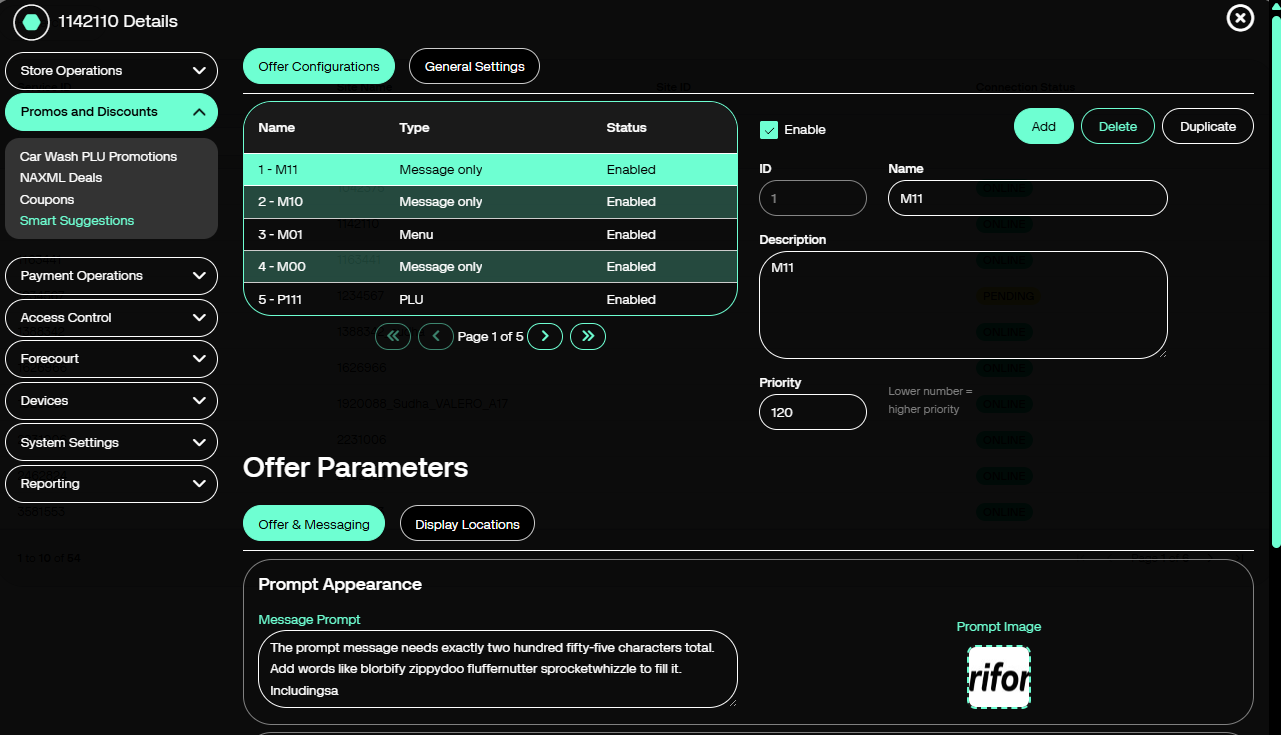
Click Add to add a Smart Suggestion.

Select Enable. Enter the name, description, and priority for the Smart Suggestion. A lower number means a higher priority. Leaving the field blank or entering 0 gives the highest priority.

Configure the next section: Offer Parameters.

In the Prompt Appearance section, add the prompt message and image. If you configure this section without prompt items, the Smart Suggestion is a message-only suggestion.

In the Prompt Items section, select the prompt item.

Selecting PLU and clicking Add displays a list of PLUs. Use filters for UPC, description, or price.


Selecting Menu and clicking Add displays a list of menus. Use filters for menu ID, menu name, or menu type.


Selecting Mix & Match and clicking Add displays a list of Mix & Match items.


Selecting Combo and clicking Add displays a list of combo items.


Multiple items can be selected for each prompt type. Make your selections and click Add/Confirm.


For the PLU prompt type, use Allow Qty Selection. This adds plus and minus controls beside the PLU, letting users increase or decrease the quantity.

For PLU and menu prompt types, you can add images to the Smart Suggestion panel.

After configuring all fields, click Create Offer.

Use Duplicate to copy a configured Smart Suggestion, then make the required changes.
