

Combo Maintenance Tab
The Combo Maintenance tab is used to define promotions that allow items from two or more item lists to be setup to trigger a discount. A particular Combo may contain both PLU and Department list types.
For example: a "Combo" NAXML deal might require the purchase of a sandwich, a side and a medium fountain drink for a set price. Configuration would require three lists to be created, one to list all the sandwiches in the promotion, one to list the sides and another for the medium fountain drink.
Open Combo Maintenance
From the NAXML Deal form > select the [Combo Maintenance] tab. The Combo Maintenance form will display.
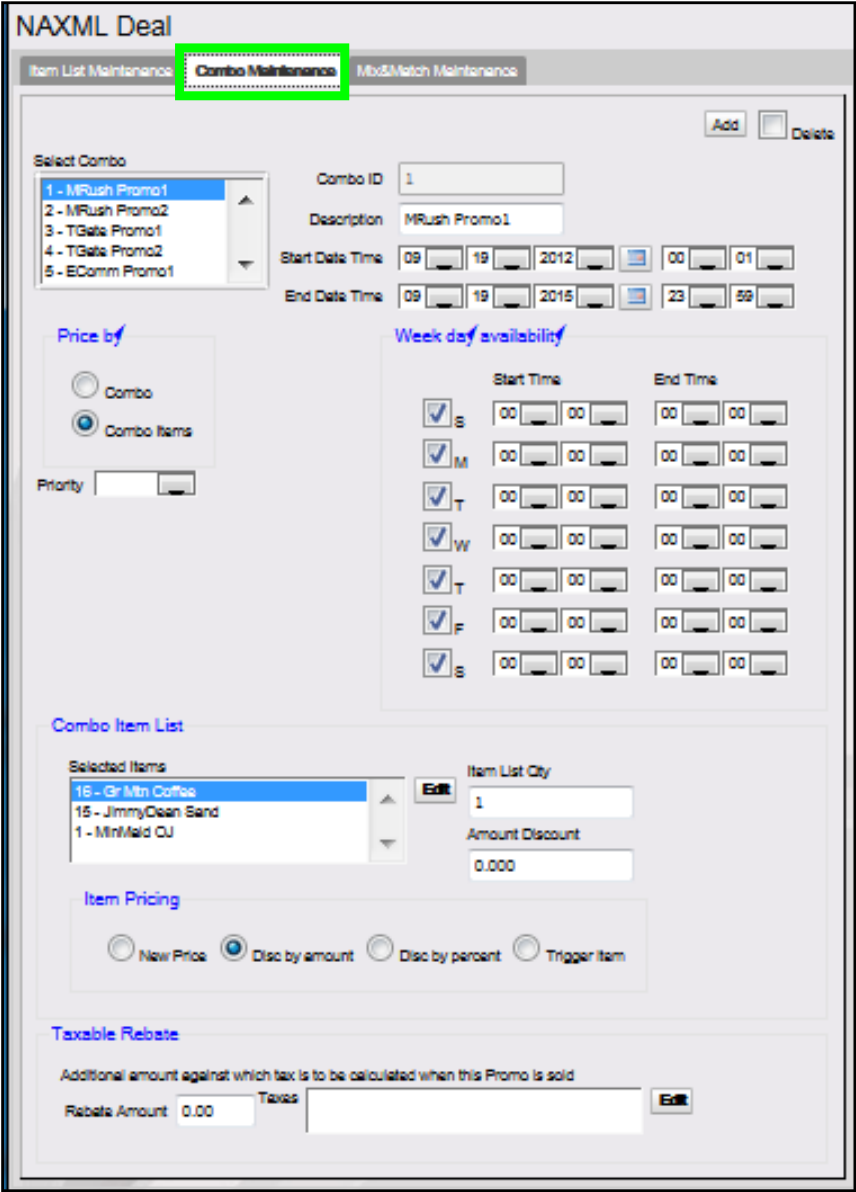
Add a Combo Deal
Select [Add] to create a Combo Deal.
Configure the Combo parameters
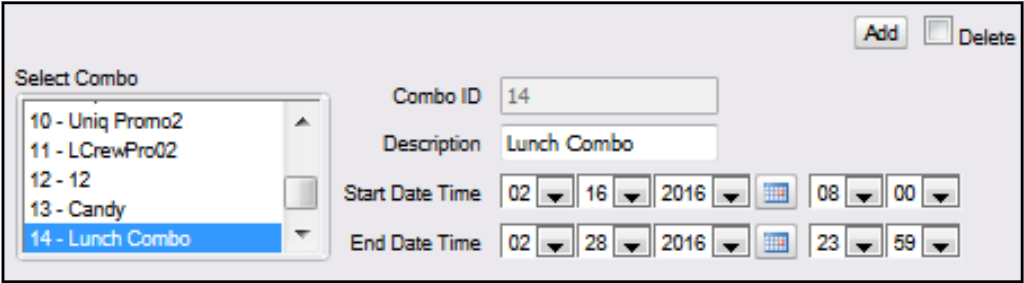
Combo
Define promotions that allow items from two or more item lists to be setup to trigger a discount.
Combo ID
Sets the ID used to identify and locate the appropriate Combo Deal.
Description
Enter an accurate description for the promotion.
Start Date Time
Sets the date and time the promotion starts.
End Date Time
Sets the date and time the promotion ends.
Configure Week day Availablity
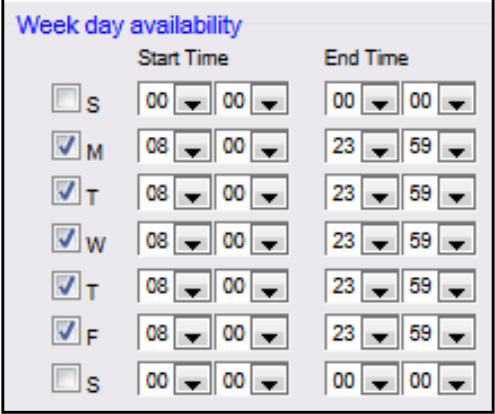
Week Day Availability
Allows a discount to run within certain days and times during the week.
SMTWTFS
Sets the week days of the promotion.
Start Time
Sets the begin time of the promotion.
End Time
Sets the stop time of the promotion.
Configure the Price By parameters
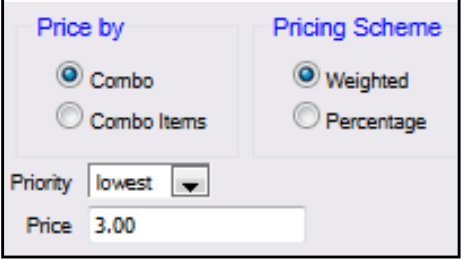
Price By
Sets the pricing option.
Combo
Sets the price for the Combo as a whole.
This option should be used when the price of the items purchased together is always the same.
Combo Items
Allows the discount to be configured based on the item lists.
Assigning Price by Combo
Select Combo as the Price by parameter
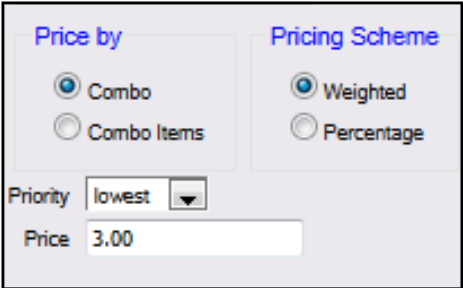
Select the Combo Priority
Enter the Combo Price
Select the Combo Pricing Scheme
Combo
Sets the price for the Combo as a whole.
Priority
Allows certain promotions to take precedence over others that may share the same items (i.e. two different discounts, same item list).
Price
Sets the discounted price of the Combo. Priority of promotions is particularly useful when programs give discounts as more items are added in combination. For example: Promo1 - Discount for soda and chips (priority = low) Promo2 - Discount for soda, chips, and sandwich (priority = medium) Promo3 - Discount for soda, chips, sandwich, and salad (priority = high) Without the ability to set priority, promo 2 and 3 will never be realized, as the soda and chips will always form Promo1. The Default setting is medium. Any promotion that does not specifically identify the priority will be assumed "medium" by the system.
Pricing Scheme
Determines how the discount appears on the receipt.
Weighted
Based on the price of the items.
Percentage
Based on the percentage discount field. The total percentage of all items should equal 100%.
Add the item lists
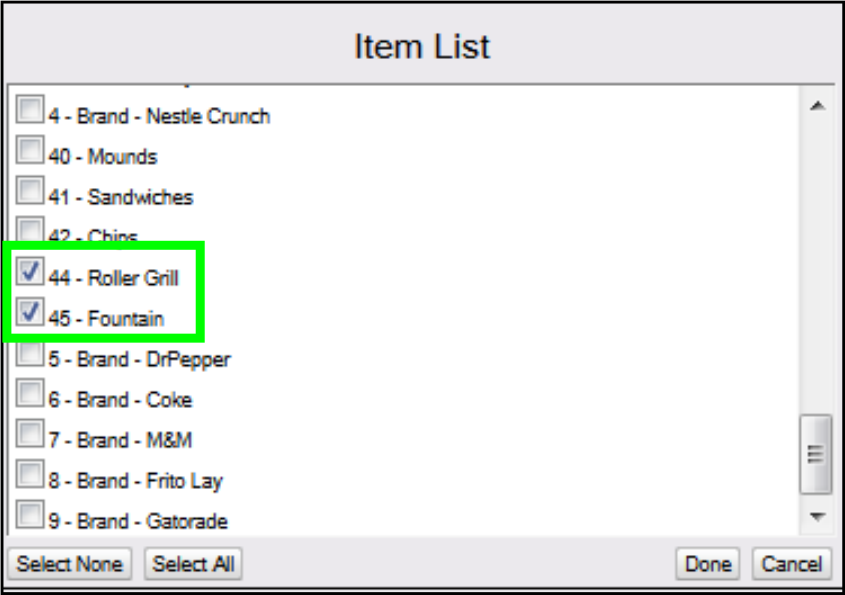
Select [Edit] to add the Item Lists to be included in the Combo Deal.
Select all the <Item Lists> that apply.
Select [Done].
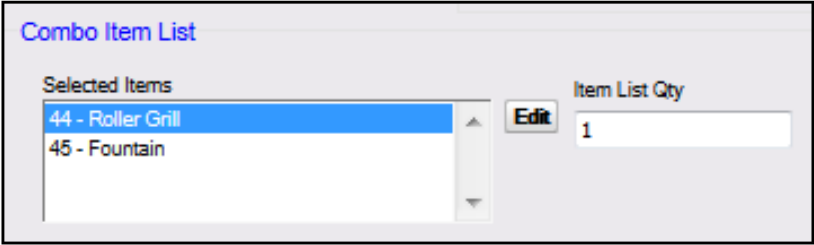
Enter the <Item List Qty> for each Item List in the Combo.
Combo Item List
Item List Quantity
Sets the number of items that must be purchased from the list to qualify for the discount.
Assigning Price By Combo Items

Select Combo Items as the Price by parameter
Select the Combo Priority
Combo Items
Allows the discount to be configured based on the item lists.
Priority
Allows certain promotions to take precedence over others that may share the same items (i.e. two different discounts, same item list). Priority of promotions is particularly useful when programs give discounts as more items are added in combination. For example: Promo1 - Discount for soda and chips (priority = low) Promo2 - Discount for soda, chips, and sandwich (priority = medium) Promo3 - Discount for soda, chips, sandwich, and salad (priority = high) Without the ability to set priority, promo 2 and 3 will never be realized, as the soda and chips will always form Promo1. The Default setting is medium. Any promotion that does not specifically identify the priority will be assumed "medium" by the system.
Add the item lists
Select [Edit] to add the Item Lists to be included in the Combo Deal.
Select all the <Item Lists> that apply.
Select [Done].
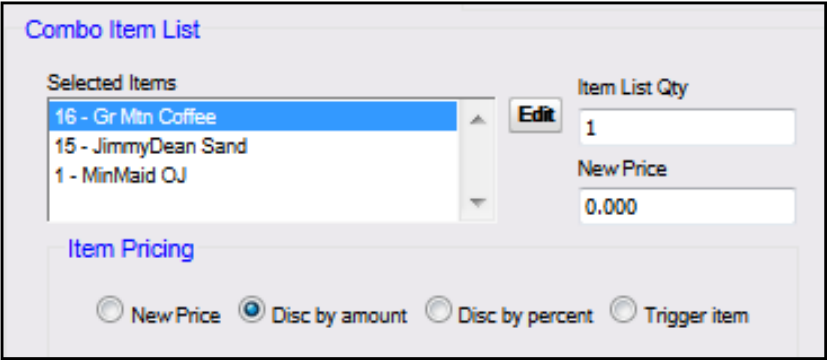
Enter an <Item List Qty> for each Item List.
Combo Item List
Allows the discount to be configured based on the item lists.
Item List Quantity
Determines the number of items that must be purchased from the list to qualify for the discount.
New Price
Assigns a new price to the items in the list for the Combo.
Select the Item Pricing option
Select the <Item Pricing> option and enter the data in the associated field for each Item List.

Item Pricing
Controls the discount distribution for the items in the Combo.
New Price
Assigns a new price to the items in the list for the Combo.
Disc by amount
Discounts a specified amount from the items in the list.
Disc by percent
Discounts a specified percentage from the items in the list.
Trigger Item
Pulls the PLU price without applying a discount to that item.
Configure the Taxable Rebate parameters
To configure the Taxable Rebate parameters > select [Edit].

Select the <Taxes> from the Item List to be calculated.

Click [Done].
Enter the <Rebate Amount>.
Taxable Rebate
Taxes
Sets the tax to be included in the calculation when this promo is sold.
Rebate Amount
Applied when tax laws exist that require sales tax to be collected against the amount of the discount when said discount is a result of an agreement, between the vendor and merchant, that provides for the merchant to be reimbursed for all or part of discounted amount.
Save the Combo Deal
Select [Save] to accept, or [Cancel] to exit without saving changes.
NAXML Combo Receipt
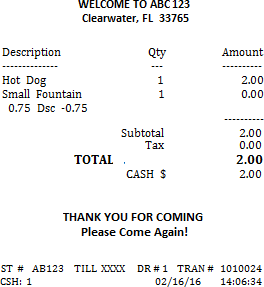
The receipt represents a Combo price by item deal: buy one or more items, get another item free.
The Combo Deal created above consisted of multiple Item Lists. It was priced so that when a customer purchased a hot dog from the selected Item List, they receive a free small fountain drink.
The discount applied is the original price of the small fountain drink ($0.75).