

Item List Maintenance Tab
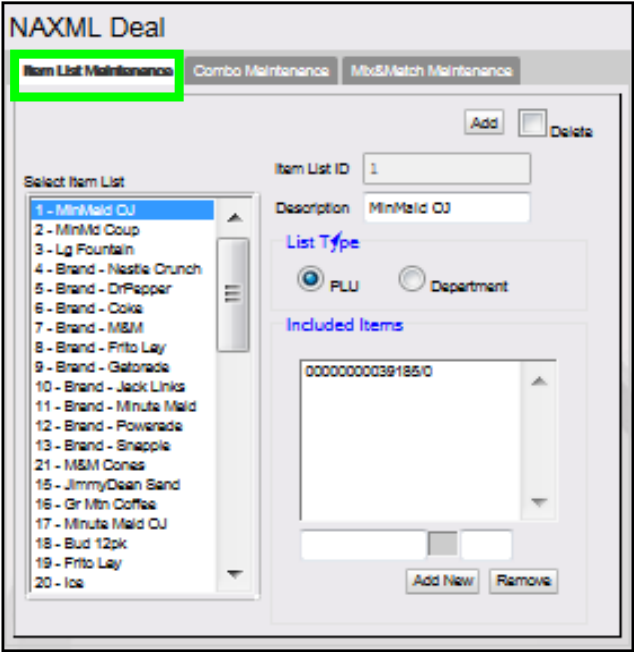
The Item List Maintenance tab defines items participating in the promotion. Item Lists are of variable size (no fixed sized records).
Select the Item List Maintenance tab
From the NAXML Deal form > select the [Item List Maintenance] tab.
Add a new list
Select [Add] to add a new list.
Delete: Allows an Item to be removed from an Item List.
Configure the Item List parameters
Item List
Defines items participating in the promotion.
Item List ID
Sets the ID used to locate the appropriate Item List.
Description
Set an accurate description for the items contained in the list.
List Type
Sets the item assignments to a PLU or Department List. PLU: Allows more control over the items being set up for the promotion. Department: Allows for all the PLUs within the assigned department to be used in the promotion.
Assigning a PLU List Type
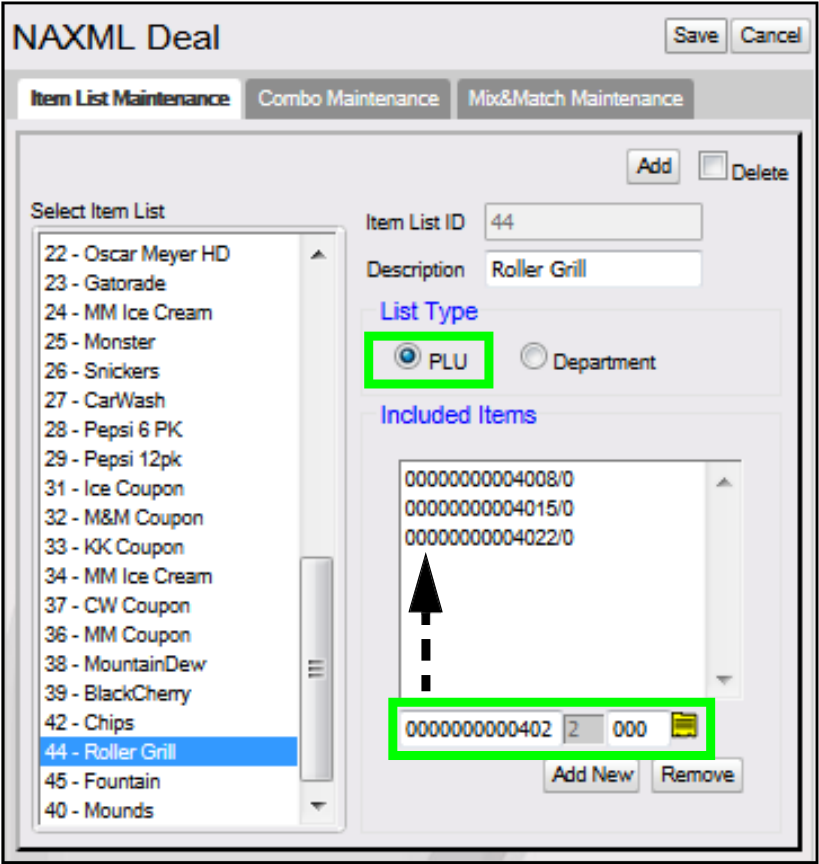
Select PLU as the List Type
Enter a PLU number
Enter a <PLU> number at the bottom of the Included Items section.
Validate the entry
Press [Tab].
If the entry is valid, a small yellow index card is displayed to the right of the modifier. Click on the index card to confirm the correct PLU was selected.
If the PLU number cannot be validated, a black 'X' is displayed to the right of the modifier.
Add the PLU
Verify the correct PLU > click [Add New].
Remove: Allows a PLU to be deleted from the Item List. Repeat this procedure until all desired PLUs are included for the promotion.
Save the Item List
Select [Save] to accept, or [Cancel] to exit without saving changes.
Assigning a Department List Type
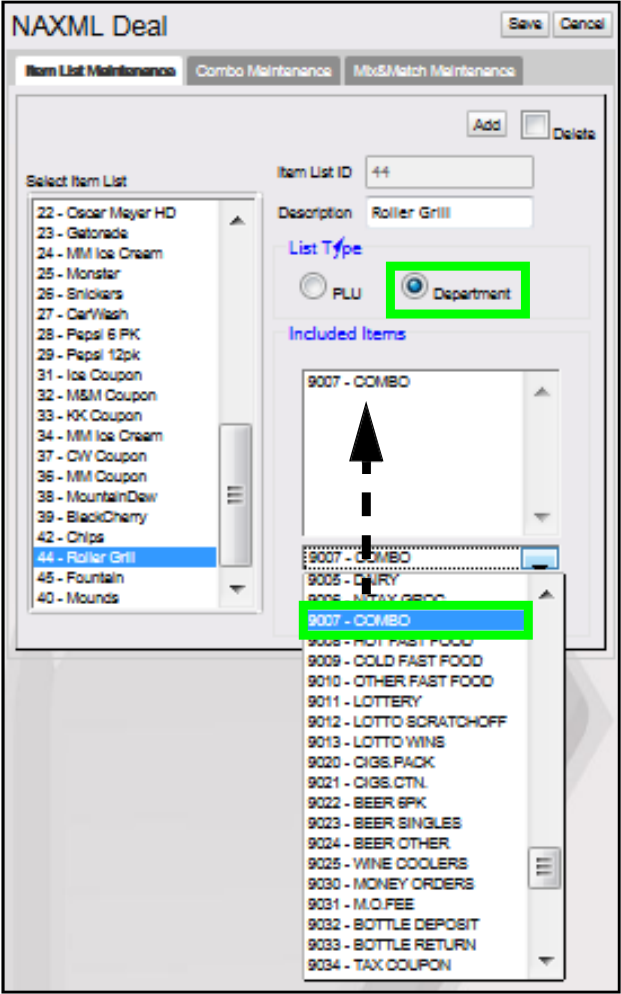
Select Department as the List Type
Choose the department
Select the appropriate <Department> from the Department drop down list located at the bottom of the Included Items section.
Add the department
Click [Add New].
Repeat this procedure until all desired departments are added to the Items List. Any Items added to the departments selected are automatically included in the promotion.
Save the Item List
Select [Save] to accept, or [Cancel] to exit without saving changes.