> For the complete documentation index, see [llms.txt](https://commanderhelp.verifone.com/llms.txt). Markdown versions of documentation pages are available by appending `.md` to page URLs; this page is available as [Markdown](https://commanderhelp.verifone.com/feature-references/features-and-products-references/vip-naxml/configuring-vip-naxml/mix-and-match-maintenance-tab.md).
# Mix\&Match Maintenance Tab
NAXML Mix\&Match Deals, also known as "package pricing," allow multiple purchases from a single Item List (i.e. two or more deals from the same Item List).
Mix\&Match requires no special handling on the part of the cashier. As items are added or removed from the transaction, the system automatically calculates any applicable discounts. For example: a Mix\&Match NAXML Deal might require two for one or three for a reduced price deal.
## Configure Mix\&Match
{% stepper %}
{% step %}
Open Mix\&Match Maintenance
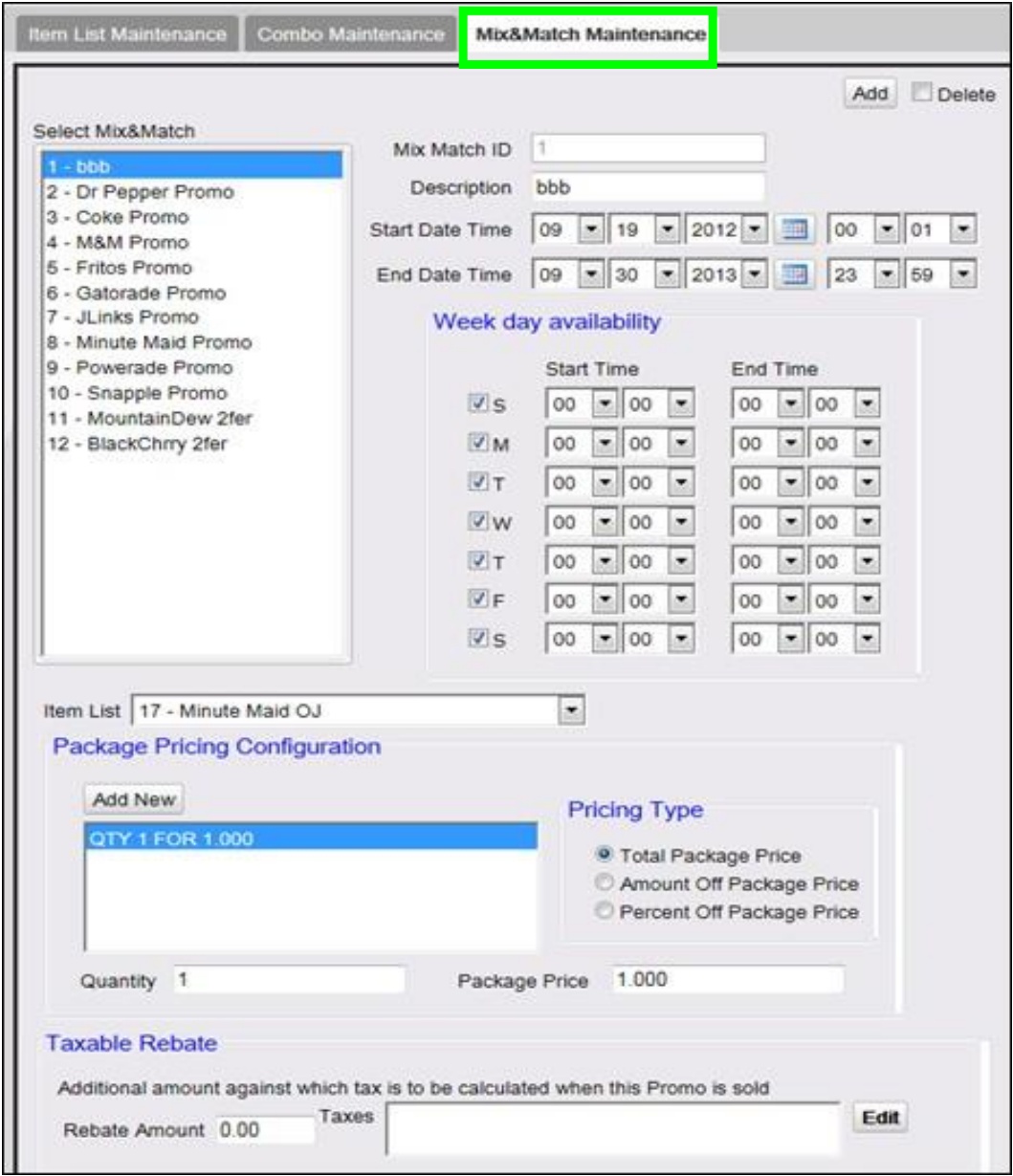
From NAXML Deal > select the \[Mix\&Match Maintenance] tab.
{% endstep %}
{% step %}
Add a Mix\&Match Deal
Select \[Add] to create a Mix\&Match Deal.
{% endstep %}
{% step %}
Configure the Mix\&Match parameters
| Value | Description |
| --------------- | ---------------------------------------------------------- |
| Mix\&Match | Allows multiple purchases from a single Item List. |
| Mix\&Match ID | Sets the number used to locate the appropriate Mix\&Match. |
| Description | Enter an accurate description for the promotion. |
| Start Date Time | Sets the date and time the promotion starts. |
| End Date Time | Sets the date and time the promotion ends. |
{% hint style="info" %}
An appropriate Combo description should be used as it will appear on the receipt (i.e. Lunch Combo).
{% endhint %}
{% hint style="info" %}
The system allows a promotion with a start date less than its end date. Such a promotion is seen by the system as "inactive." This is advantageous when the same promotion runs for a month and then again several months later. Times are entered in 24 hour format.
{% endhint %}
{% endstep %}
{% step %}
Configure Week day Availablity
| Value | Description |
| --------------------- | ----------------------------------------------------------------------- |
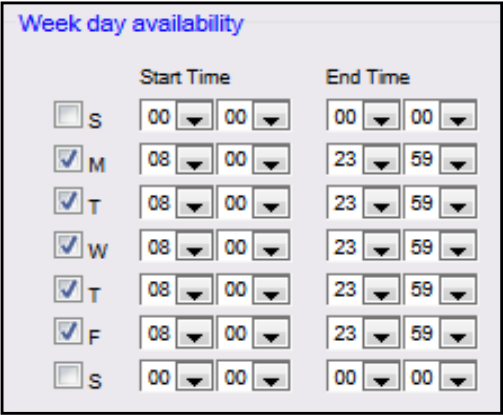
| Week Day Availability | Allows a discount to run within certain days and times during the week. |
| SMTWTFS | Sets the week days of the promotion. |
| Start Time | Sets the begin time of the promotion. |
| End Time | Sets the stop time of the promotion. |
{% hint style="info" %}
Combos are date and time sensitive. The dates and times drive when the discount applies.
{% endhint %}
{% endstep %}
{% step %}
Select the Item List and add pricing
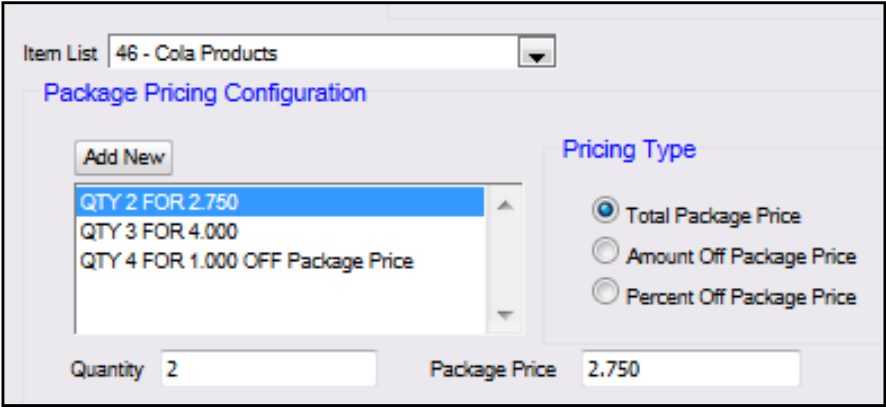
1. Select the \ to configure the discount.
2. Select \[Add New] to enter in the pricing scheme.
{% endstep %}
{% step %}
Configure the Package Pricing Type parameters:
| Value | Description |
| ------------------------- | ------------------------------------------------------------------------------- |
| Pricing Type | Allows different pricing schemes to be applied to the Item List. |
| Total Package Price | Sets the total price for the purchase. |
| Amount off Package Price | Sets the amount taken off the items when purchased. |
| Percent Off Package Price | Discounts the package deal by a set percentage. |
| Quantity | Determines how many of the items must be purchased to qualify for the discount. |
| Package Price | Assigns the package price. |
{% hint style="info" %}
Mix\&Match can have up to 10 different Mix\&Match Unit pricing points per program. It prices items based on quantity thresholds (i.e. as the quantity goes up, it hits a new price point).
{% endhint %}
{% endstep %}
{% step %}
Add additional package schemes
If more package schemes exists for the selected Item List, click \[Add New], enter the quantity and select the pricing information.
{% endstep %}
{% step %}
Configure the Taxable Rebate parameters
To configure the Taxable Rebate parameters > select \[Edit].
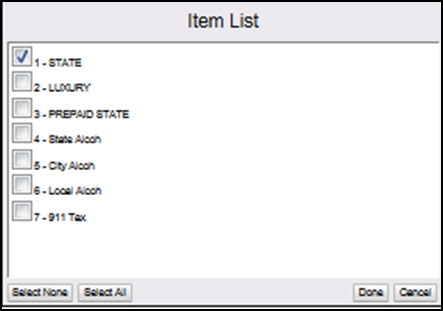
1. Select the \ from the Item List to be calculated.
2. Click \[Done].
3. Enter the \.
| Value | Description |
| -------------- | ---------------------------------------------------------------------------------------------------------------------------------------------------------------------------------------------------------------------------------------------------------------------------- |
| Taxable Rebate | |
| Taxes | Sets the tax to be included in the calculation when this promo is sold. |
| Rebate Amount | Applied when tax laws exist that require sales tax to be collected against the amount of the discount when said discount is a result of an agreement, between the vendor and merchant, that provides for the merchant to be reimbursed for all or part of discounted amount. |
| {% endstep %} | |
{% step %}
Save the Mix\&Match Deal
Select \[Save] to accept, or \[Cancel] to exit without saving changes.
{% endstep %}
{% endstepper %}
{% hint style="warning" %}
After configuring an NAXML Combo, ensure the discount is tested on the POS. The Combo will appear once the correct combination of items are entered into the POS.
{% endhint %}
## NAXML Mix\&Match Receipt
The receipt below represents a Mix\&Match deal - buy X items: discount total of items by amount.
The Cola Promo created above consists of a single Item List. It is priced so that when a customer buys cola from the selected Item List, they will receive $0.25 off when buying two, $0.50 off when buying three, and $1.00 off when buying four.
*For instance, get $0.25 off when two colas are purchased.*

The discount goes to $0.50 when three colas are purchased.

*The discount goes to $1.00 off when four colas are purchased.*

---
# Agent Instructions
This documentation is published with GitBook. GitBook is the documentation platform designed so that both humans and AI agents can read, navigate, and reason over technical content effectively. Learn more at gitbook.com.
## Querying This Documentation
If you need additional information that is not directly available in this page, you can query the documentation by asking a question.
Perform an HTTP GET request on the following URL with the `ask` and `goal` query parameters:
```
GET https://commanderhelp.verifone.com/feature-references/features-and-products-references/vip-naxml/configuring-vip-naxml/mix-and-match-maintenance-tab.md?ask=&goal=
```
`ask` is the immediate question: it should be specific, self-contained, and written in natural language.
`goal` is what the user is ultimately trying to achieve, the reason they need the answer. Sharing it helps GitBook give you a better, more relevant answer. A goal is most helpful when it describes the outcome the user wants rather than restating the question. For example, with `ask=how do I create an API token`, a goal like `automate deployments from our CI pipeline` lets GitBook tailor the answer to that use case.
The response will contain a direct answer to the question and relevant excerpts and sources from the documentation.
Use this mechanism when the answer is not explicitly present in the current page, you need clarification or additional context, or you want to retrieve related documentation sections.

 {% endstep %}
{% step %}
Add a Mix\&Match Deal
Select \[Add] to create a Mix\&Match Deal.
 | Value | Description |
| --------------------- | ----------------------------------------------------------------------- |
| Week Day Availability | Allows a discount to run within certain days and times during the week. |
| SMTWTFS | Sets the week days of the promotion. |
| Start Time | Sets the begin time of the promotion. |
| End Time | Sets the stop time of the promotion. |
{% hint style="info" %}
Combos are date and time sensitive. The dates and times drive when the discount applies.
{% endhint %}
{% endstep %}
{% step %}
Select the Item List and add pricing
1. Select the \
 {% endstep %}
{% step %}
Configure the Package Pricing Type parameters:
| Value | Description |
| ------------------------- | ------------------------------------------------------------------------------- |
| Pricing Type | Allows different pricing schemes to be applied to the Item List. |
| Total Package Price | Sets the total price for the purchase. |
| Amount off Package Price | Sets the amount taken off the items when purchased. |
| Percent Off Package Price | Discounts the package deal by a set percentage. |
| Quantity | Determines how many of the items must be purchased to qualify for the discount. |
| Package Price | Assigns the package price. |
{% hint style="info" %}
Mix\&Match can have up to 10 different Mix\&Match Unit pricing points per program. It prices items based on quantity thresholds (i.e. as the quantity goes up, it hits a new price point).
{% endhint %}
{% endstep %}
{% step %}
Add additional package schemes
If more package schemes exists for the selected Item List, click \[Add New], enter the quantity and select the pricing information.
{% endstep %}
{% step %}
Configure the Taxable Rebate parameters
To configure the Taxable Rebate parameters > select \[Edit].